

AI review training: a complete walkthrough
This training follows one example from start to finish. Alex Morgan at Brightline Consulting prepares a Marketing Services Agreement for a client, Northwind Retail. The contract has the kind of problems that slip through: an end date before the start date, a total that doesn’t add up, a blank for the governing law, a one-sided renewal and indemnity, and no force majeure clause. The names, companies and email addresses in this example are made up, and nothing was sent.
AI suggestions are not legal advice. You decide on every change.
-
Upload the document and choose Review with AI
Upload a PDF from Documents. eSignMor asks Review this document with AI? and shows how many pages the document has, the AI pages it will use (one per page), and the AI pages you have left this month.
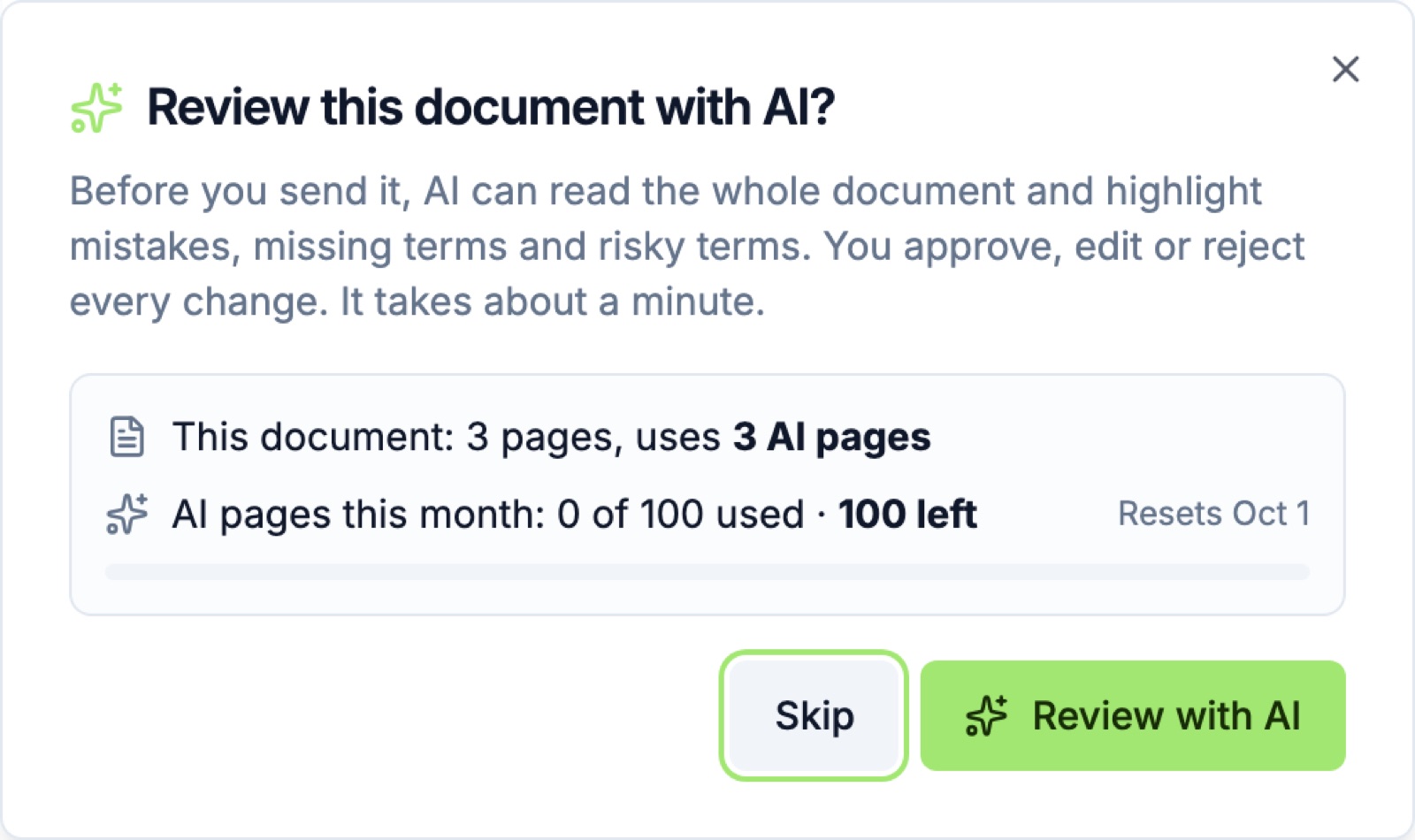
Select Review with AI. You can also start a review later from Review with AI in the document’s Quick Actions.
-
Tell AI what kind of document it is
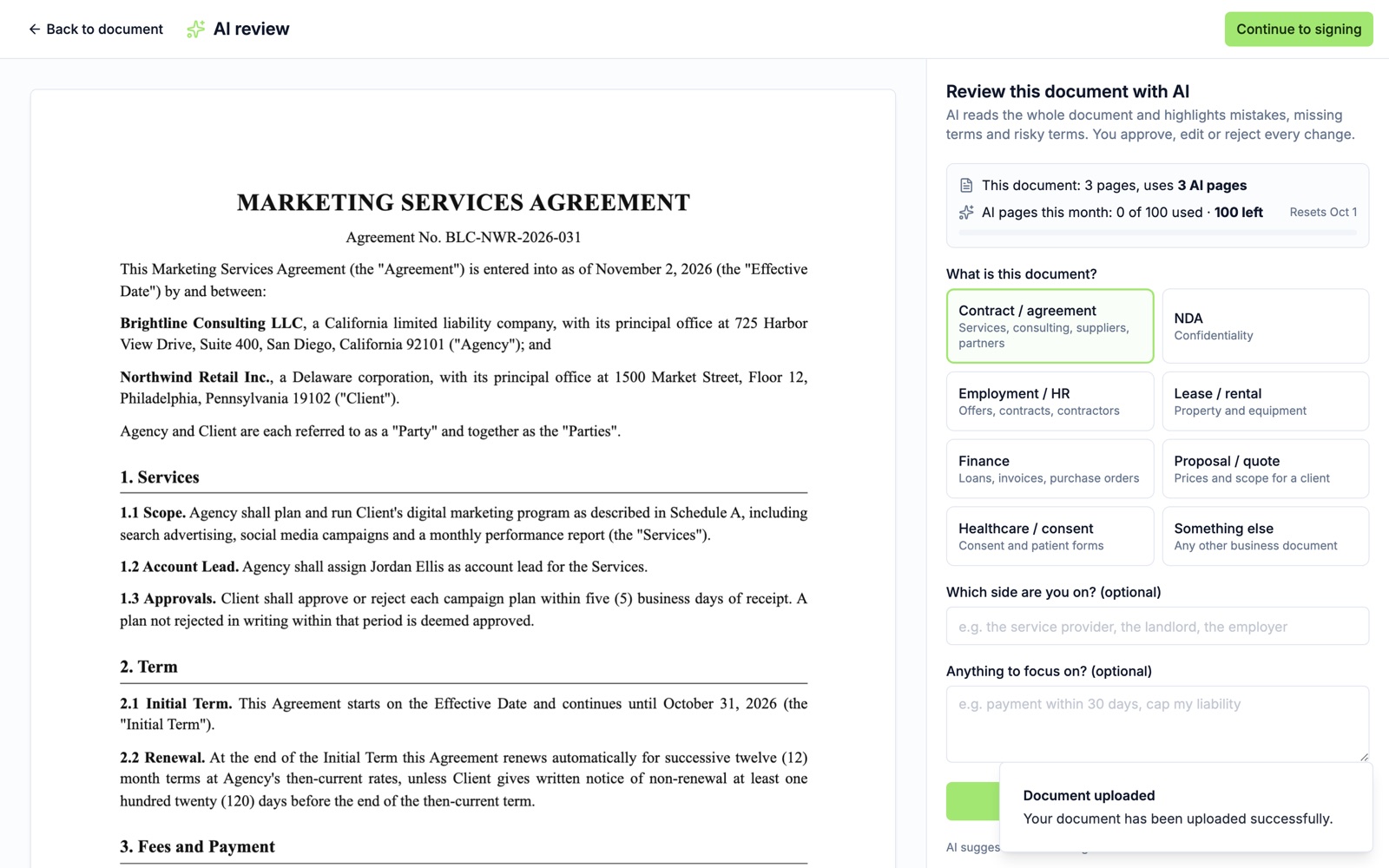
Choose the document type (here, Contract / agreement). Optionally, say which side you are on and what to focus on, for example “cap my liability” or “payment within 30 days”. Then select Start AI review.
-
Watch the first results arrive
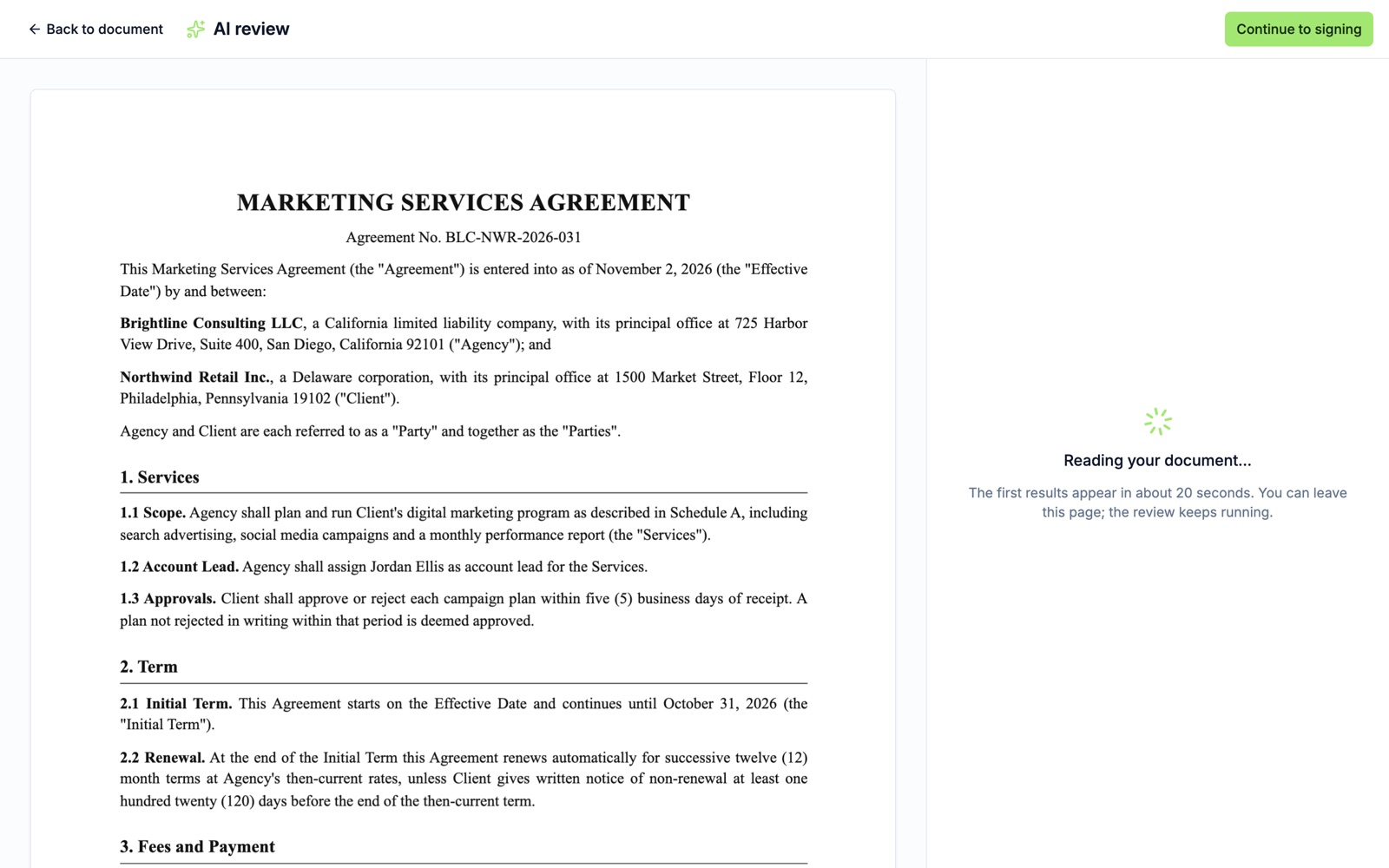
AI reads the whole document. The first findings appear in under a minute, and you can start approving while AI keeps checking for missing and risky terms.
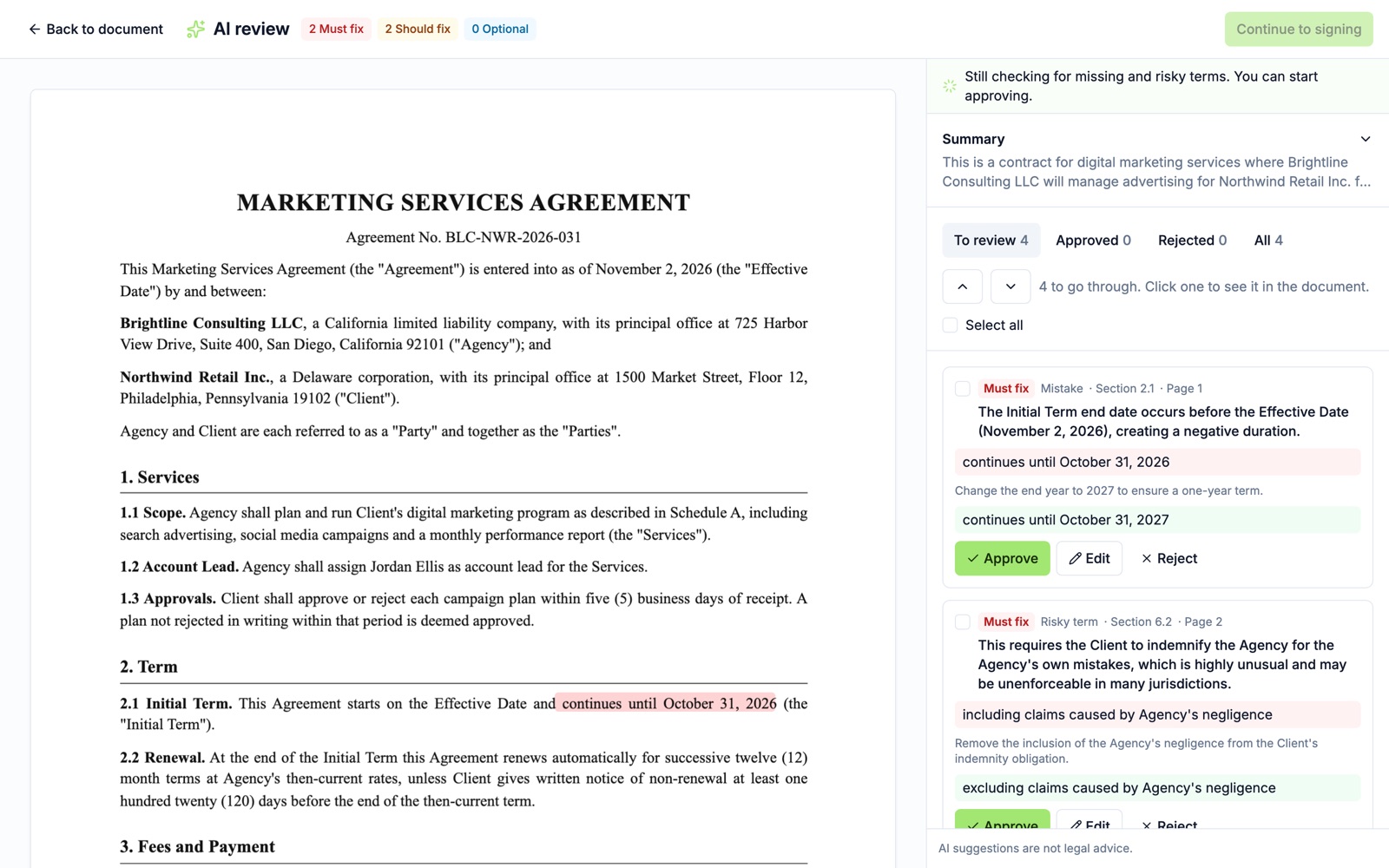
Every finding is checked a second time against the document’s own text, so what you see is really in the document. Blank name, address and signature lines are not flagged; those are filled in when people sign.
-
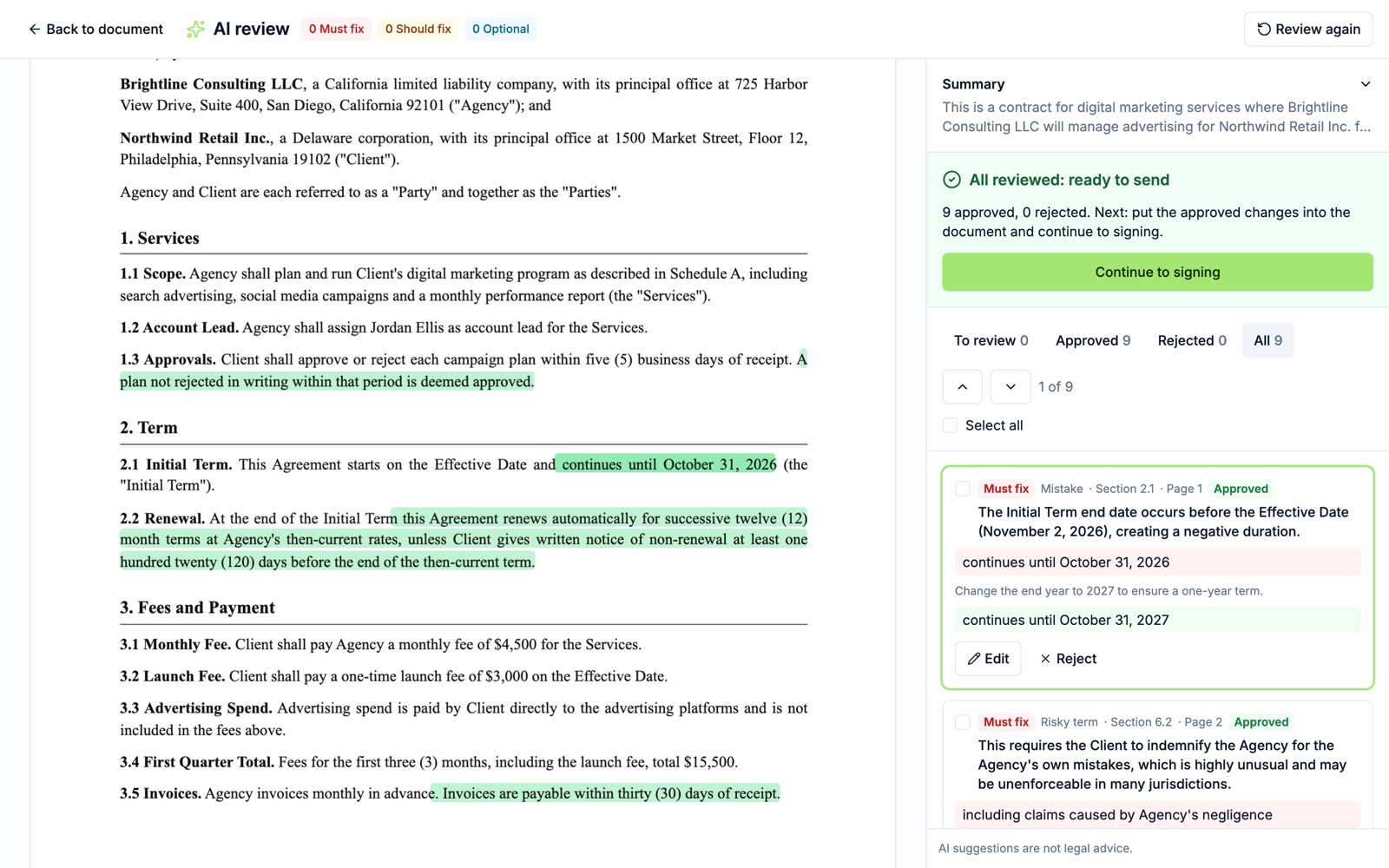
Review the findings on the document
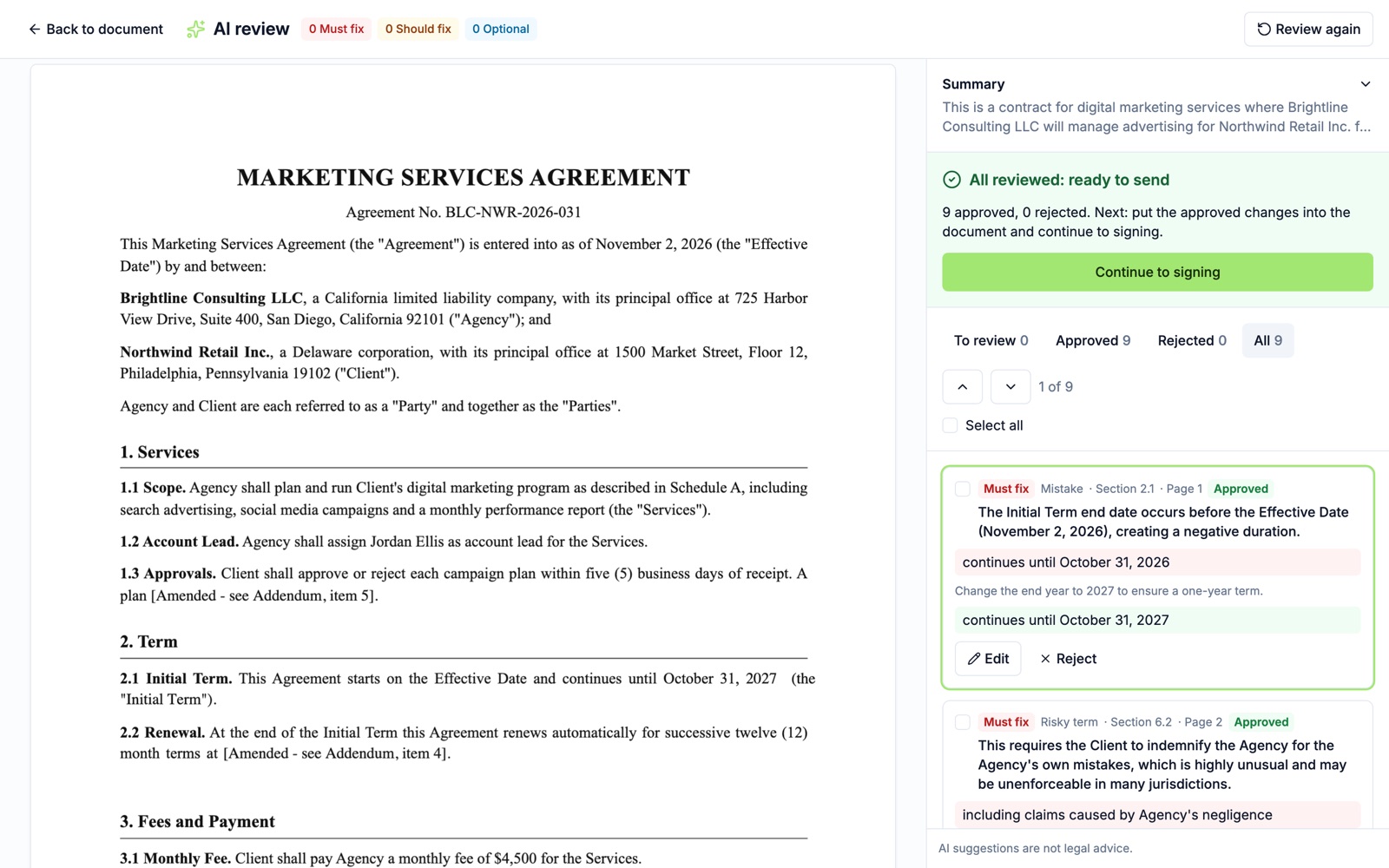
The whole document is shown with each problem highlighted in red. The panel on the right lists every finding with its severity (Must fix, Should fix, Optional), what is wrong, the current wording and the suggested wording.
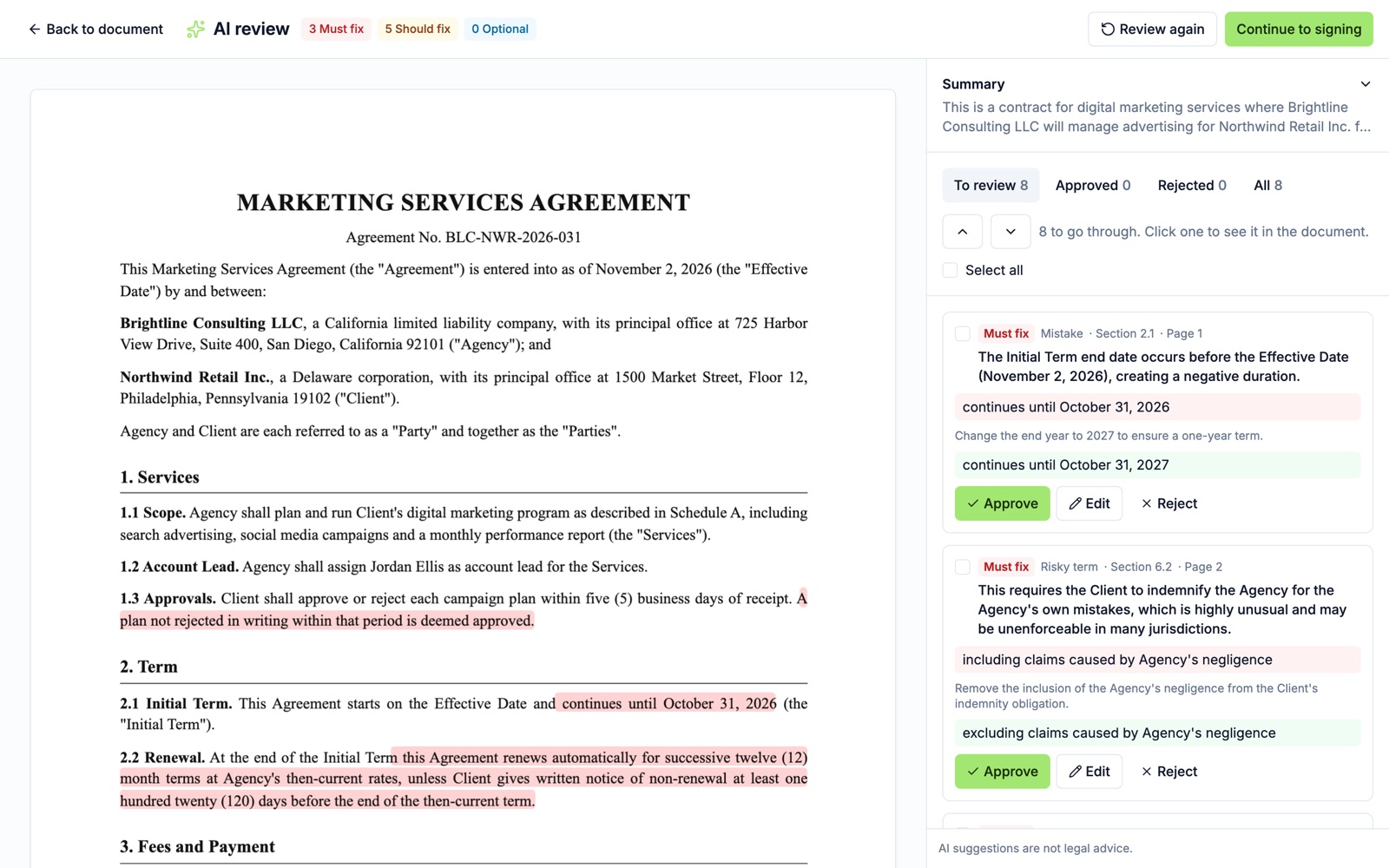
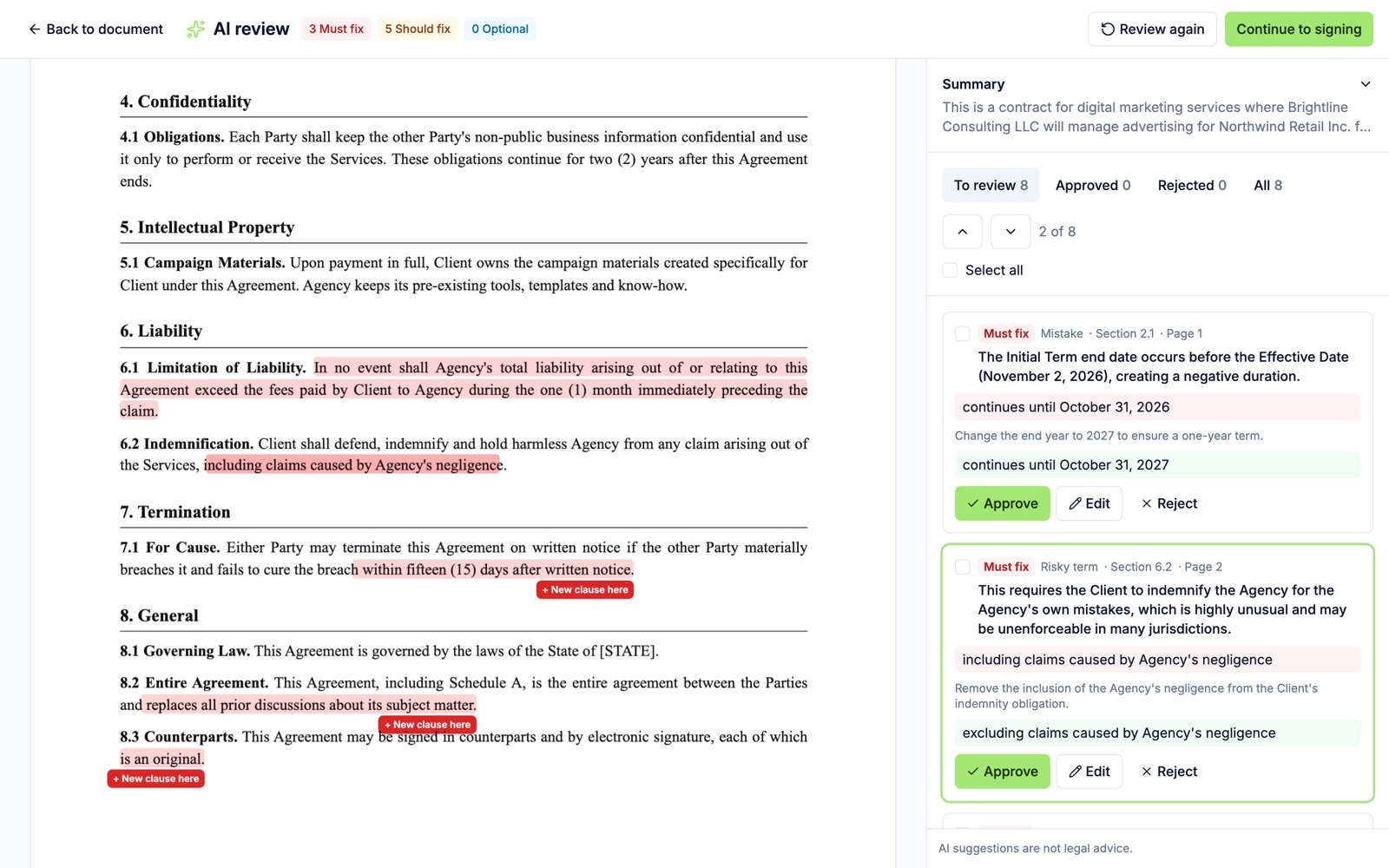
Select a finding (or use the up and down arrows) and the document jumps to that exact place.
-
Approve, edit or reject each change
- Approve accepts the suggested wording.
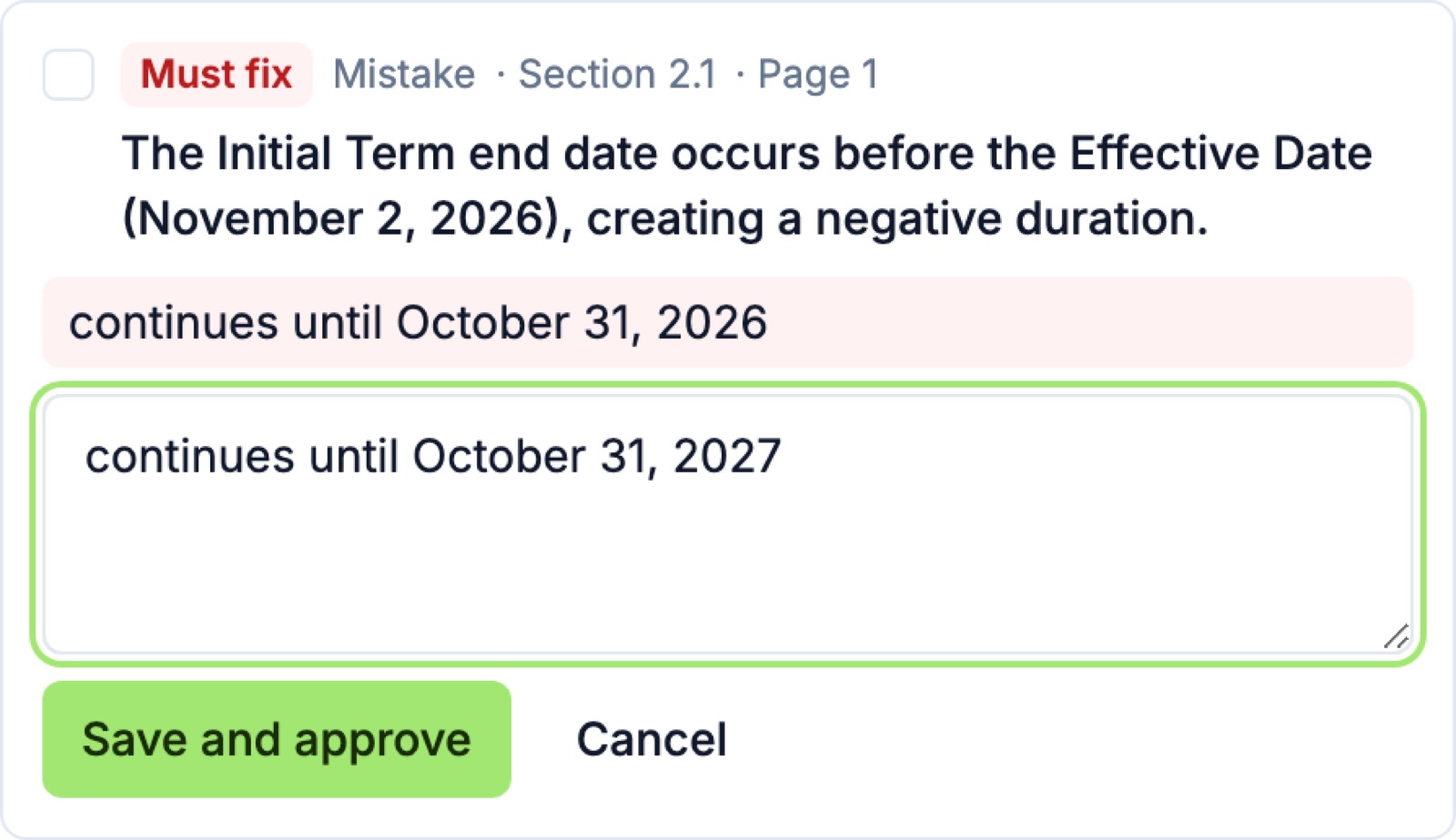
- Edit lets you type your own wording, then Save and approve.
- Reject leaves the document as it is.
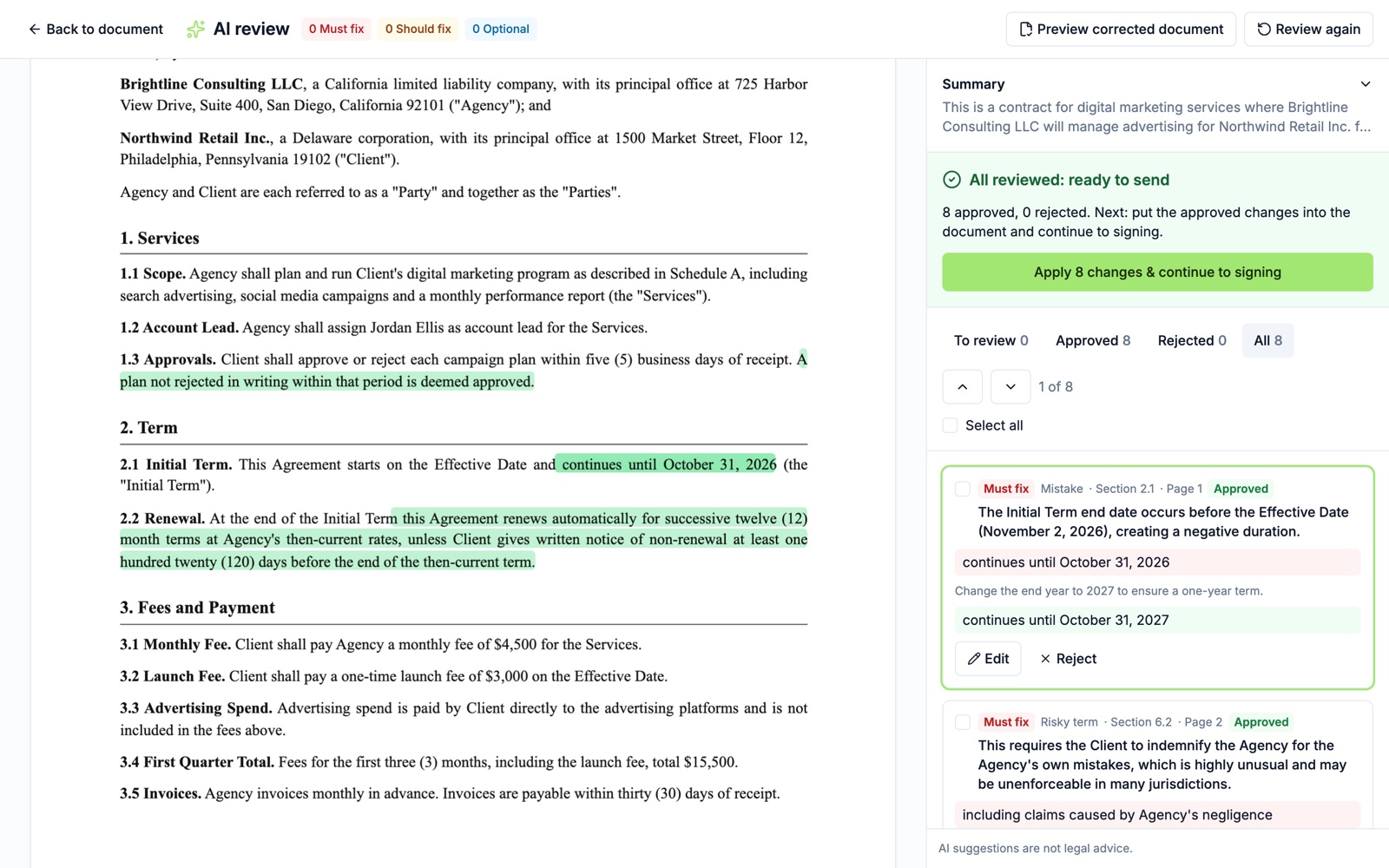
To accept everything at once, tick Select all and choose Approve. Approved text turns green. When every finding is decided, the panel shows All reviewed: ready to send.
-
Apply the changes
Select Apply N changes & continue to signing. A window shows AI working through each step: reading the document, making your approved changes, checking every word against the original, and adding signers and signature fields.
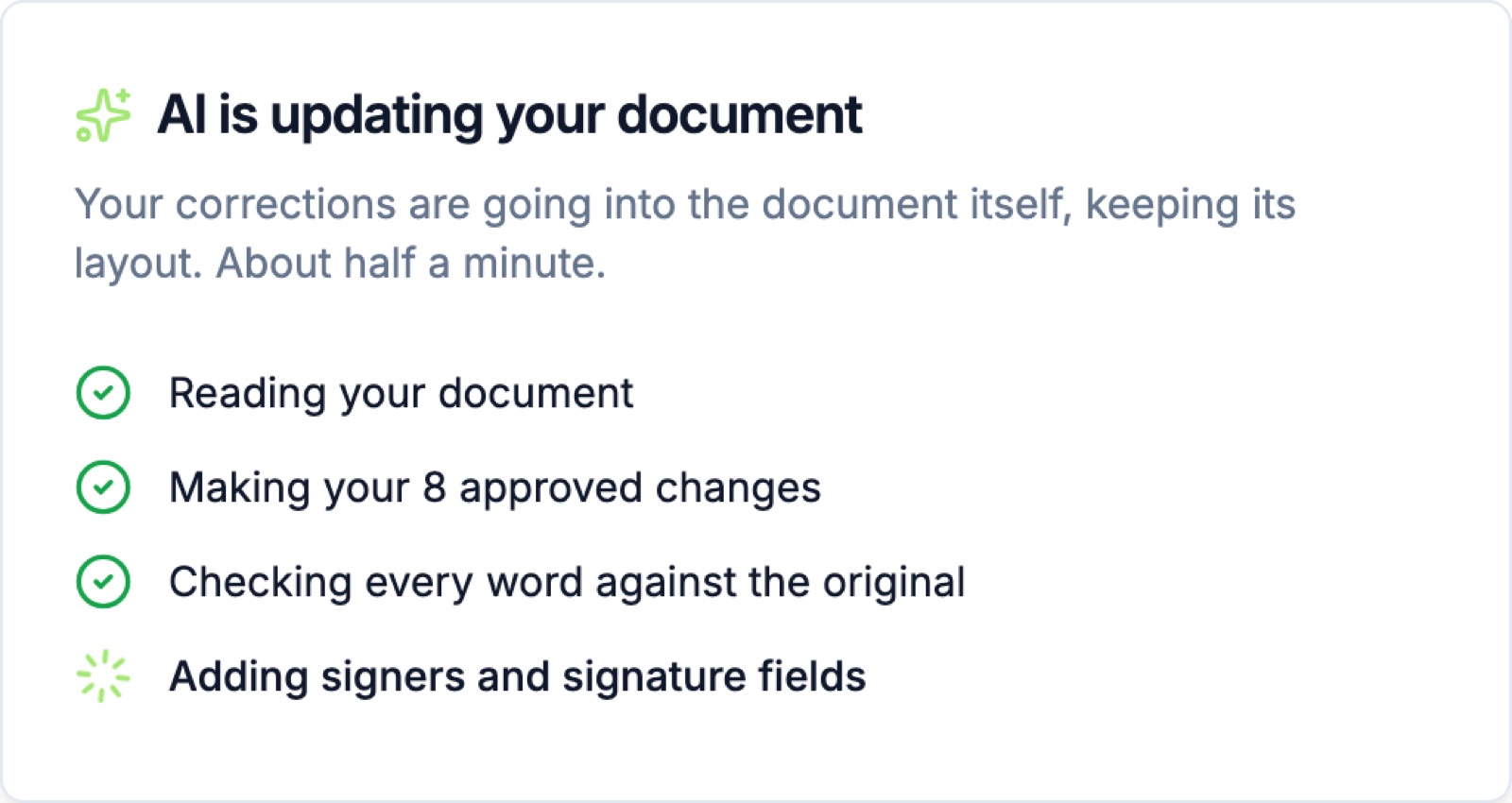
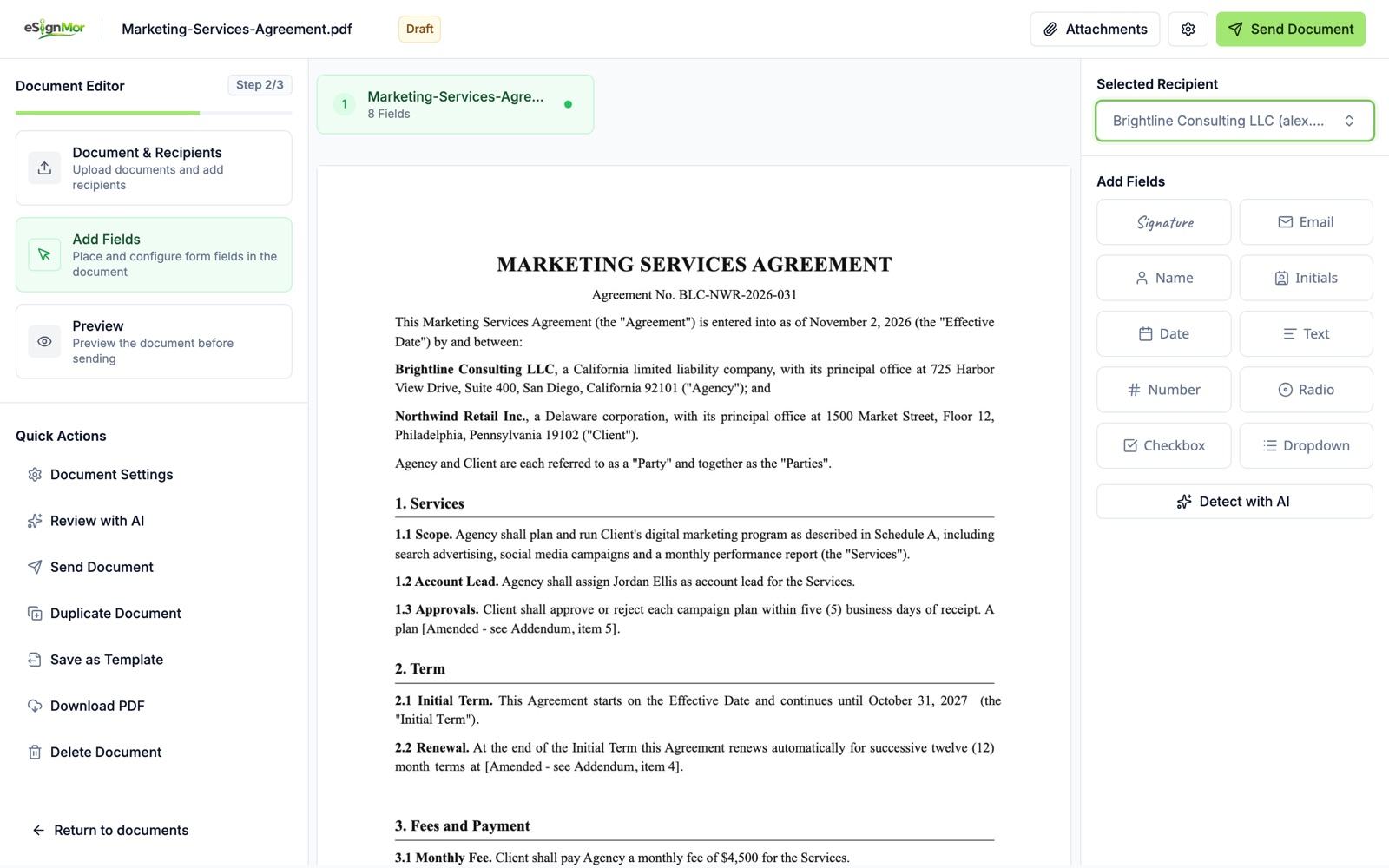
Your changes go into the document itself, keeping its layout: same pages, fonts and spacing. The old wording is removed, not hidden. A clause you remove reads “[Intentionally omitted.]”. New clauses, and rewrites too long for their space, go on an Addendum page at the end, which forms part of the agreement, with a short pointer such as “[Amended - see Addendum, item 4]” left in place.
-
Ready to send, with one last chance to change something
When it is done, eSignMor says Your document is updated and ready to send and tells you how many changes were made, what went on the Addendum, and the signers and fields AI added.
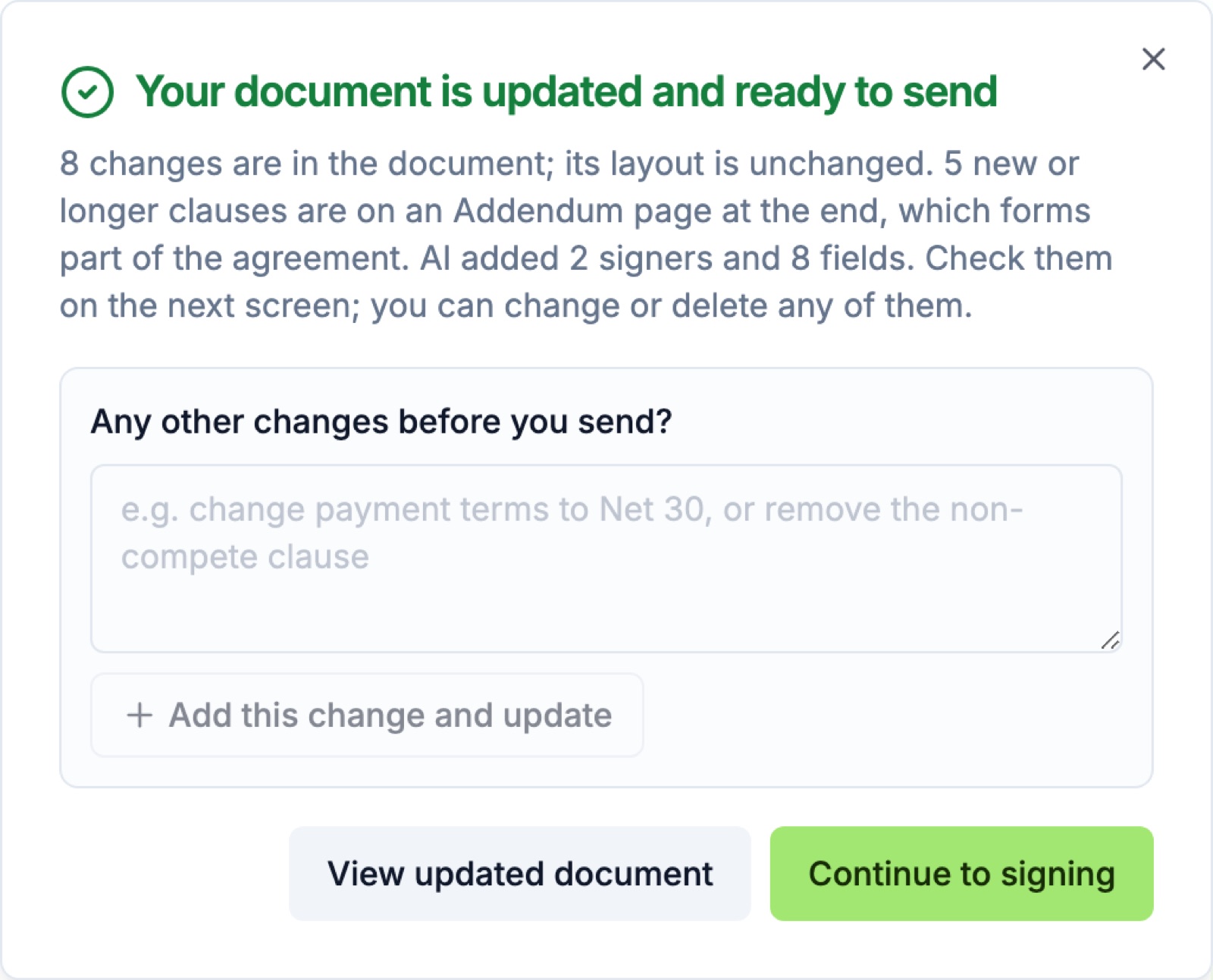
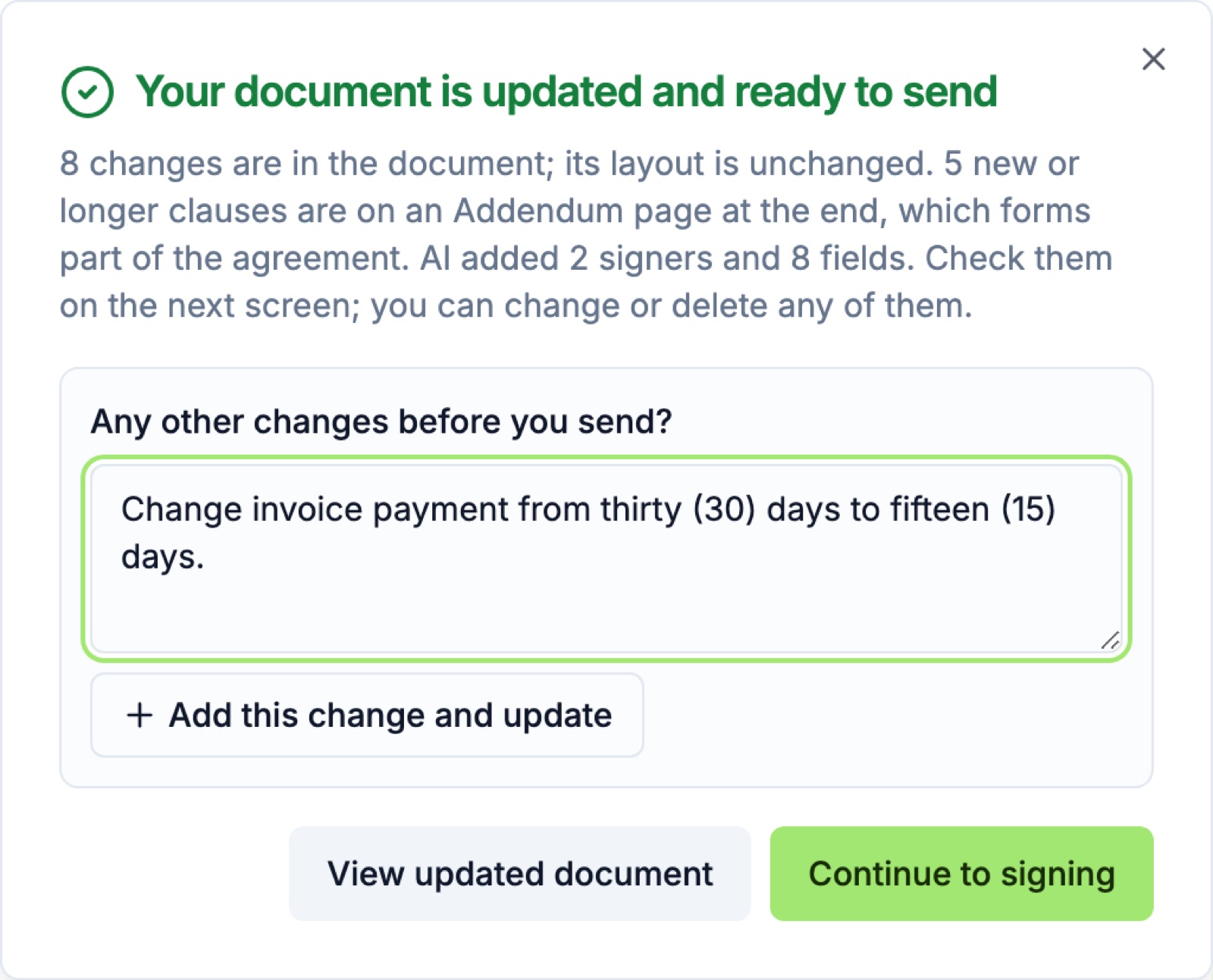
Need one more change? Type it in plain words under Any other changes before you send? and select Add this change and update. AI finds the exact place and updates the document again.
-
Compare the updated document with the original
Select View updated document. Switch between Corrected and Original to compare. The original keeps its highlights so you can see what changed. If you change your mind, Restore original puts the uploaded version back.
-
Check the signers and fields
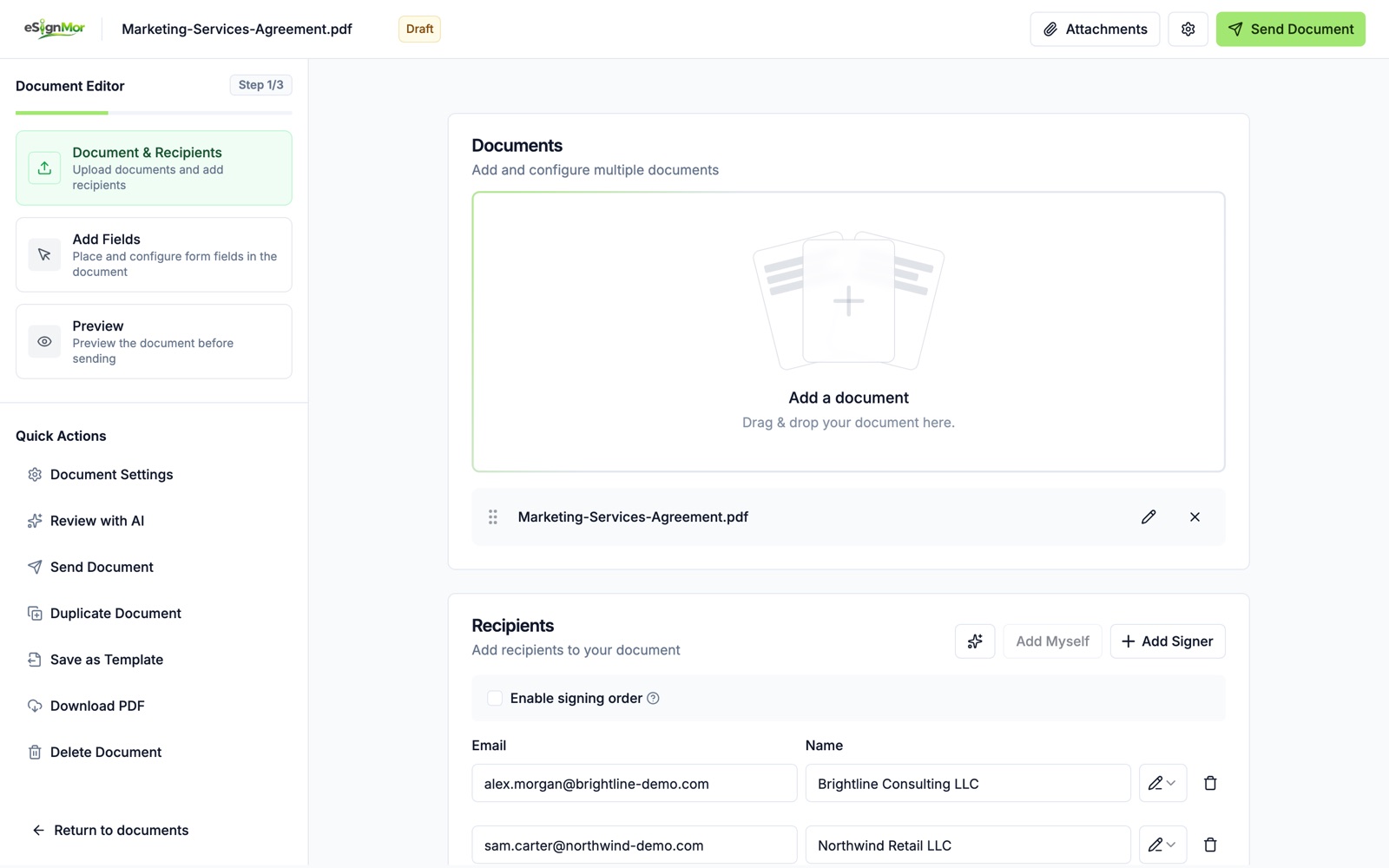
Select Continue to signing. AI has added the signers it found in the document and placed signature, name and date fields on the right lines, sized like the document’s own text. Add or correct email addresses, and change or delete anything you need.
-
Send when you’re ready
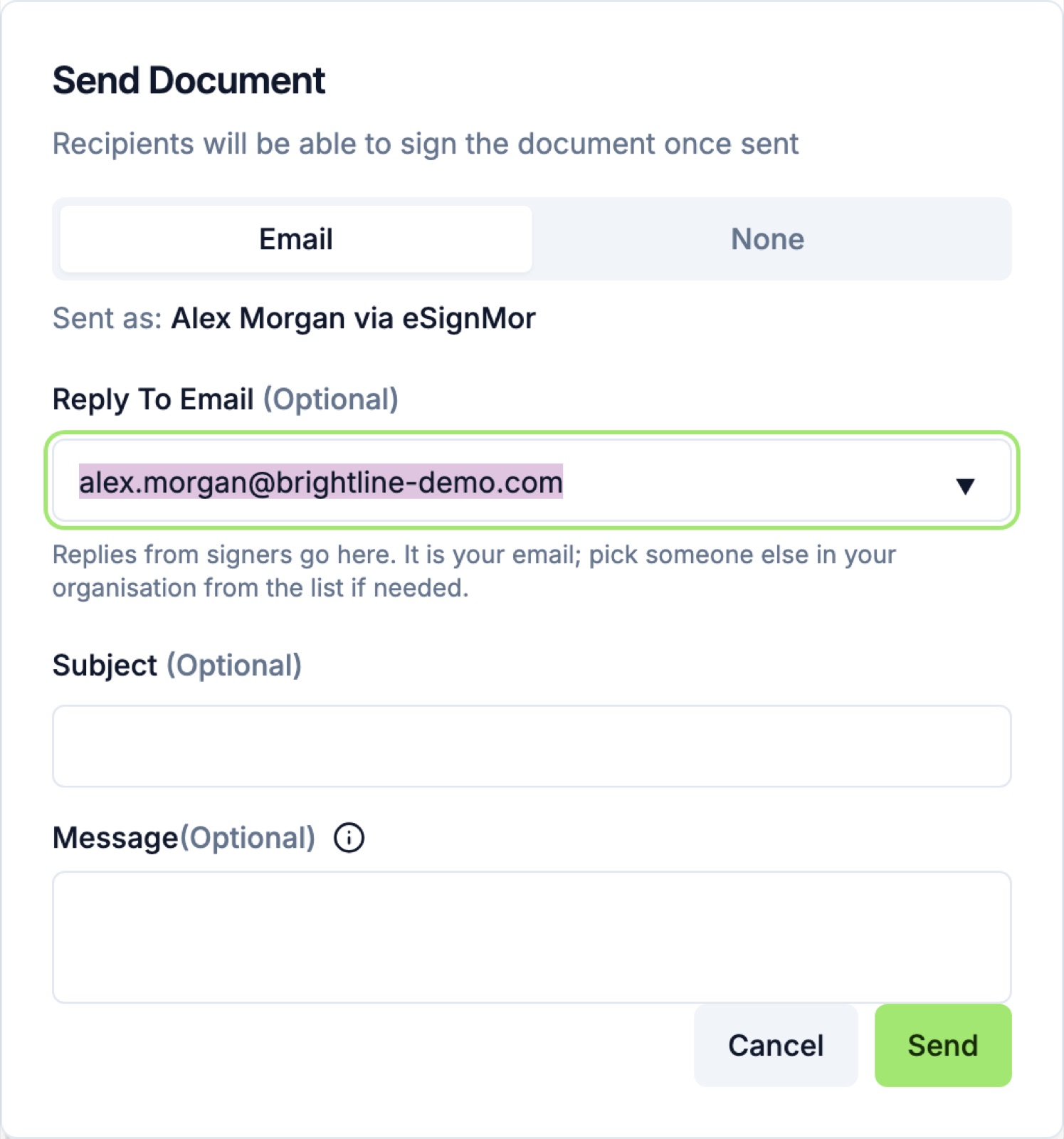
Select Send Document. The email is sent as you (“Alex Morgan via eSignMor”), and replies go to your email unless you pick someone else in your organisation. In this training nothing was sent.
-
Keep an eye on your AI pages
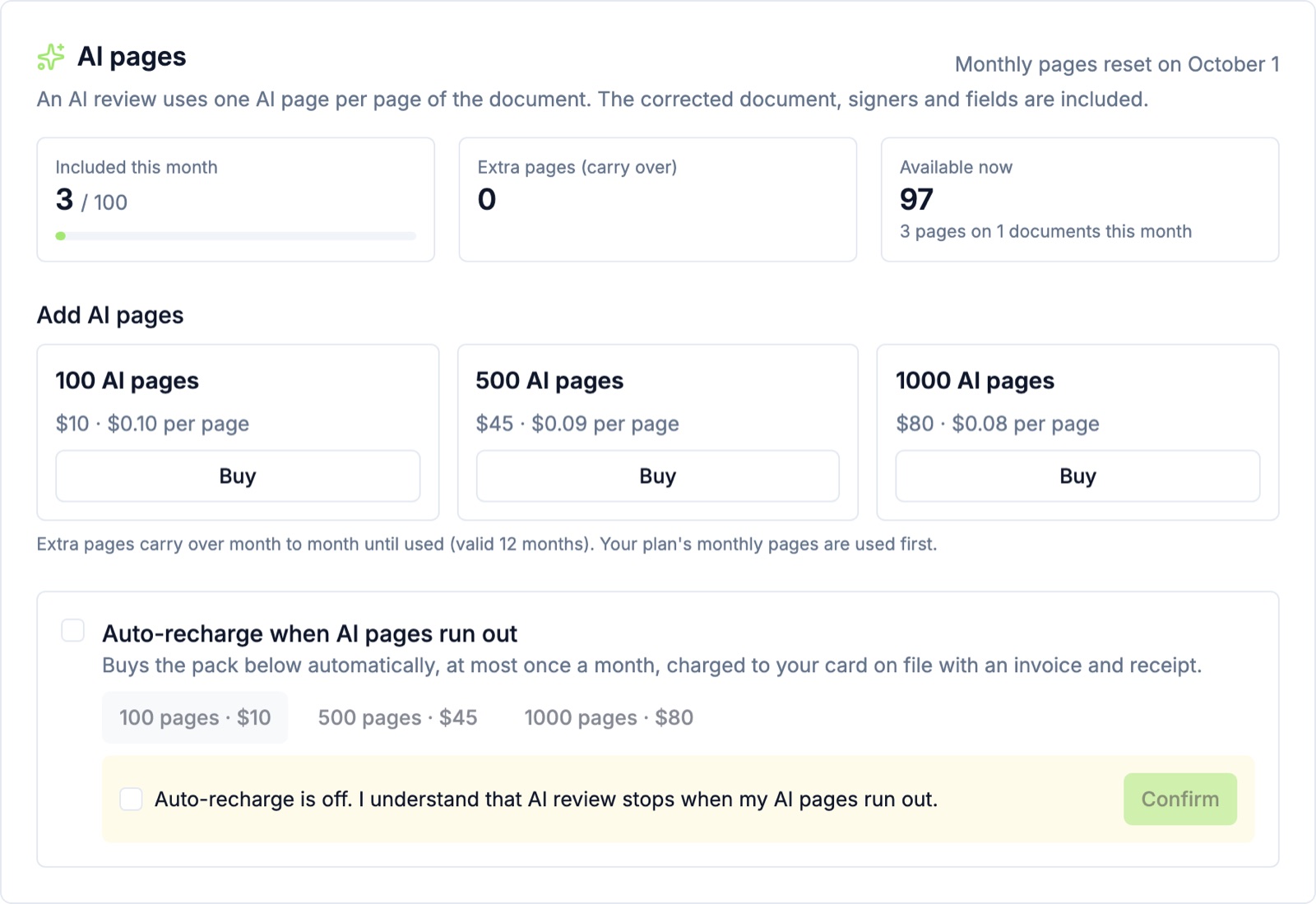
Open Settings → Billing → AI pages to see the AI pages used this month, extra pages you bought and what is available now. On Business plans and above you can buy extra pages and turn on auto-recharge; on Personal, upgrade for more AI pages. See AI pages and billing.
Tips
- Run the review before you place fields: AI adds signers and fields for you after it updates the document.
- Use Edit whenever the suggested wording is close but not quite right; your wording is what goes in.
- Long documents use more AI pages (one per page). A 5-page contract uses 5 AI pages; the updated document, signers and fields are included.
Need a hand? Email support@esignmor.com.