

Detect recipients and fields with AI
Let AI find who needs to sign and place the fields on the right lines. You review and adjust everything before you send.
If you used AI review, the signers and fields are added for you when you continue to signing. Use these steps for any document, or to run detection again.
-
Detect recipients
Open the document in the editor. In Recipients, select the AI button (Detect recipients with AI), then select Detect.
AI reads the names and email addresses in the document and suggests the people who need to sign.
Result: The detected recipients are listed for you to check.
-
Check the recipients
Review each name, email and role. Add, remove or correct recipients, and set a signing order if it matters.
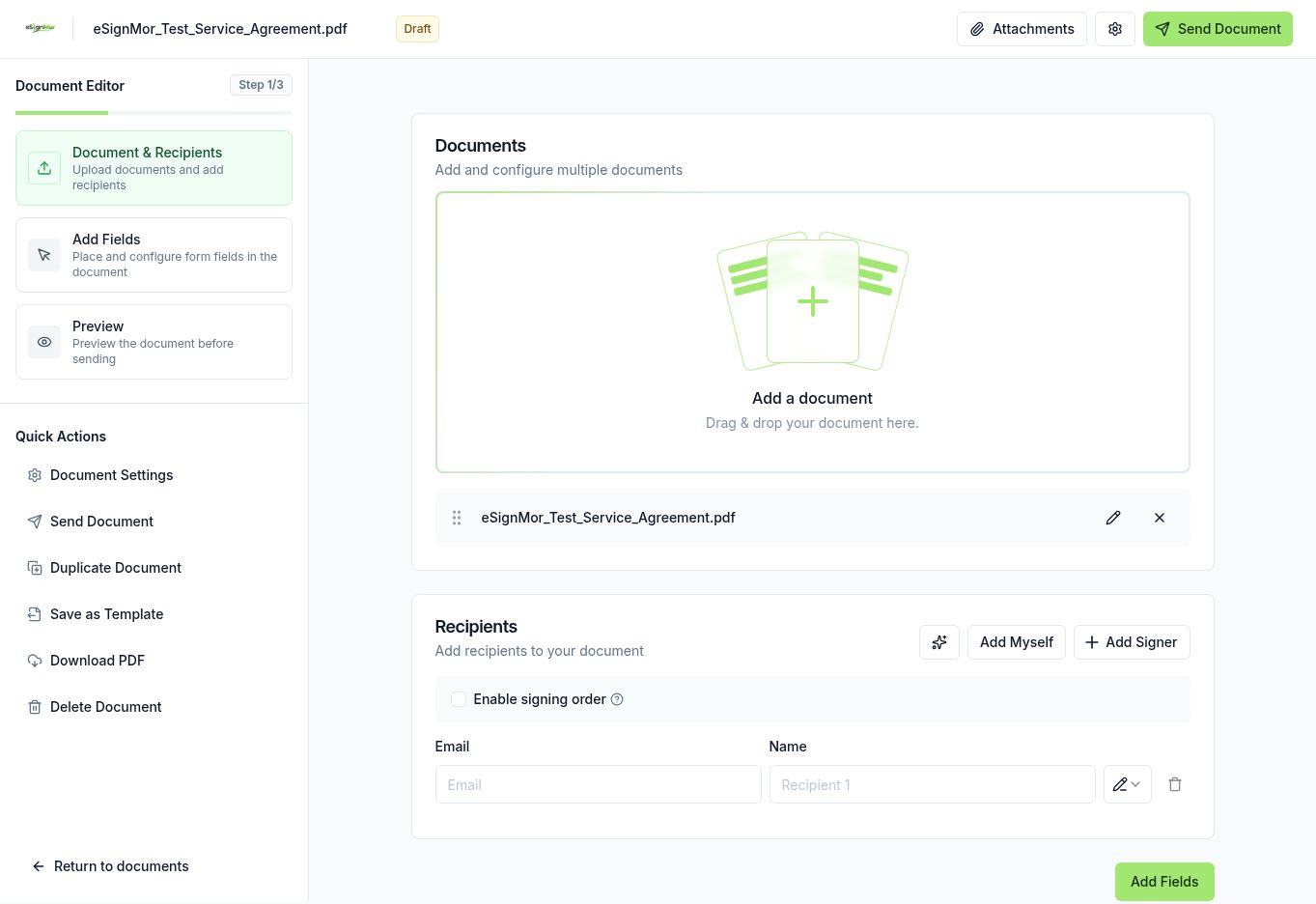 Every recipient stays editable.
 -
Detect fields
Go to the fields step and select Detect with AI. Optionally add context to help AI assign fields to the right recipients, then select Detect. This can take a minute or two, depending on the size of the document.
AI places signature, initials, name, email, date, text, number, checkbox and radio fields on the right lines.
-
Add the fields and adjust
Check the detected fields and select Add fields. Move, resize, reassign or delete any field in the editor, and add fields manually where you need them.
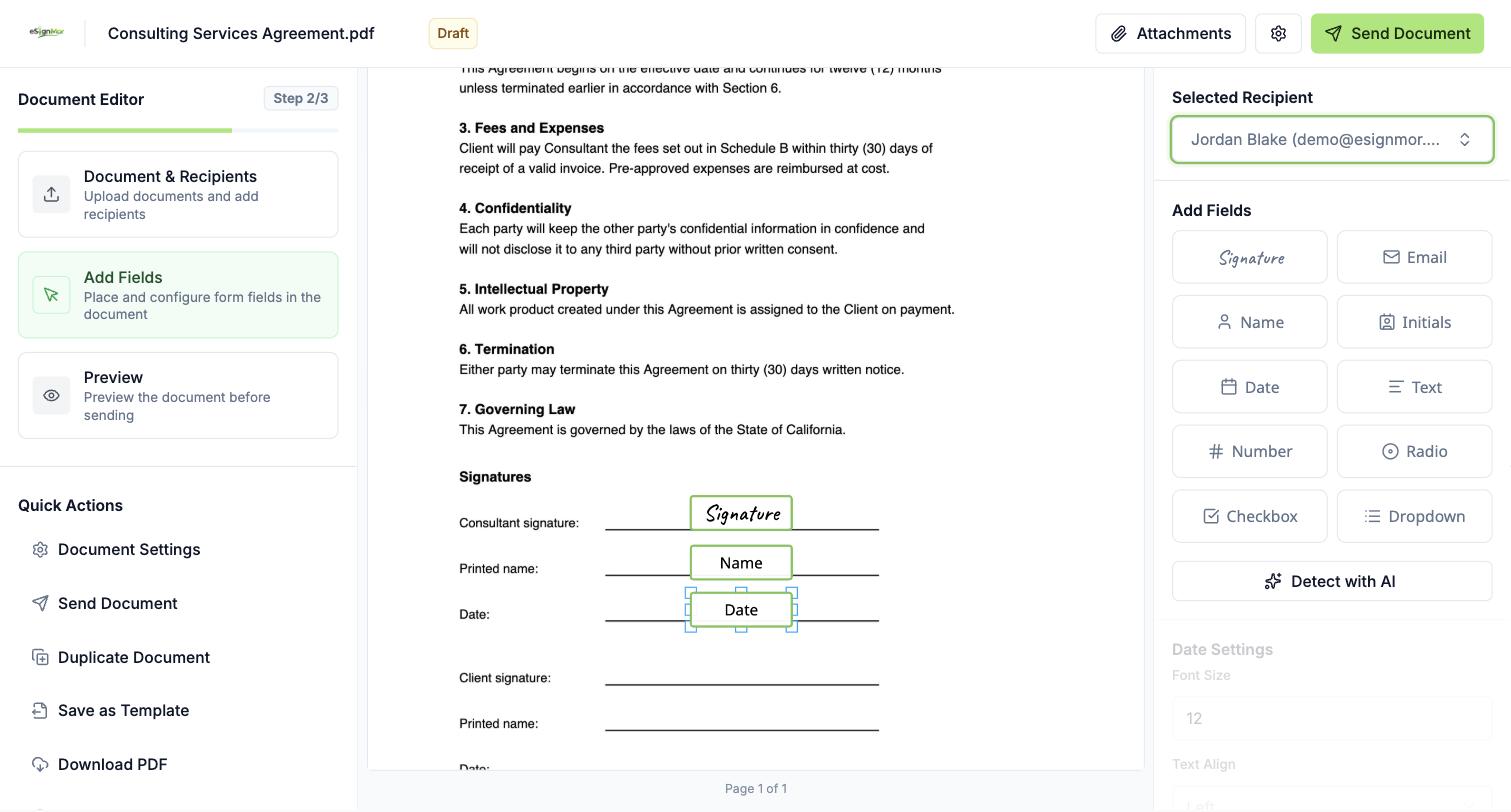 Adjust the fields before you send.
Result: Every recipient has the fields they must complete.
Good to know
- If the AI button shows Enable AI detection, AI features are turned off for your team.
- If nothing is detected, add recipients and fields manually as usual.
- AI features run on Google Cloud Vertex AI (Gemini models). Your document is processed only to provide the feature.
Need a hand? Email support@esignmor.com.