

Preview and send a document
Do the final review and start the signing workflow.
-
Open Preview
Open Preview.
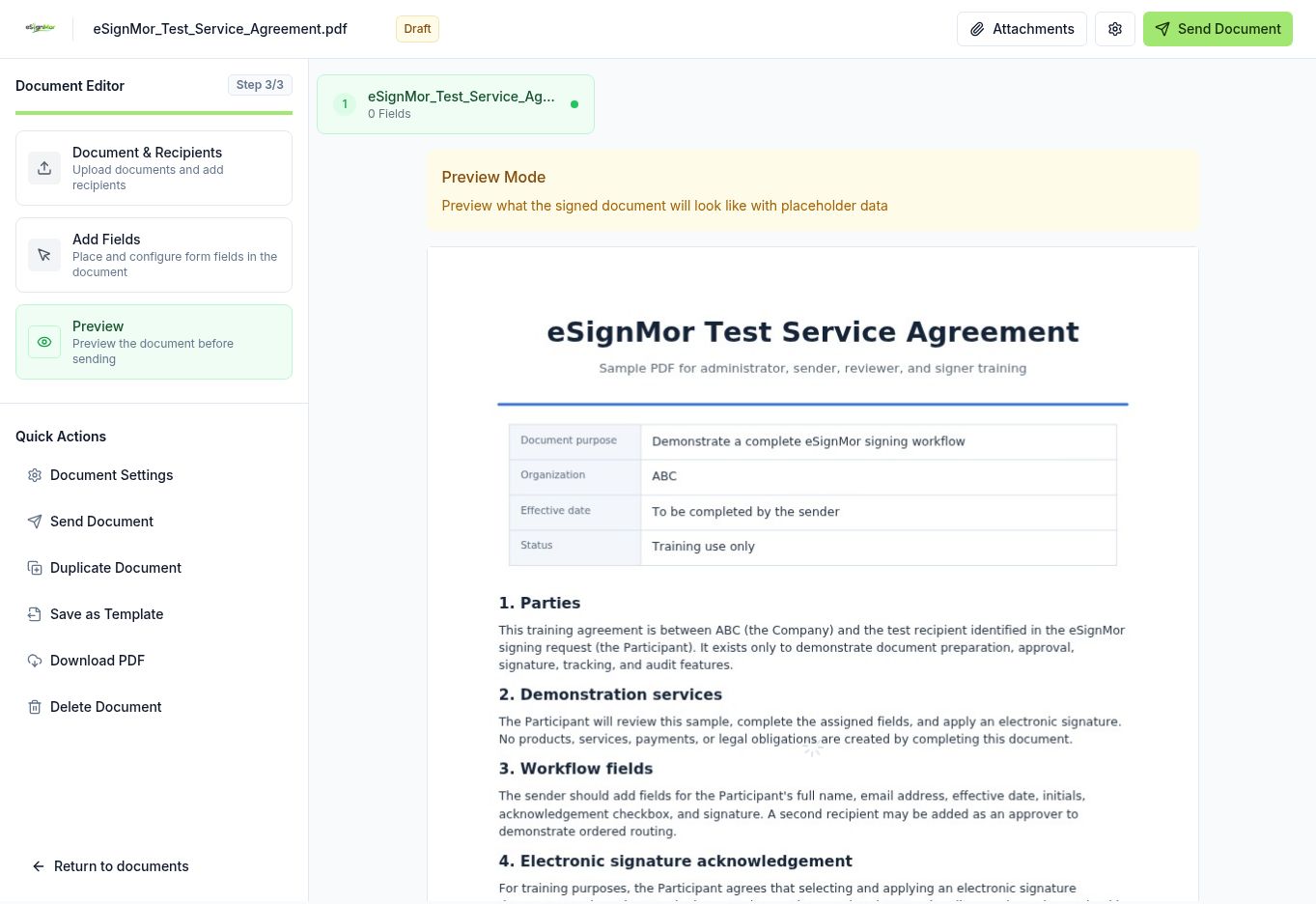 Review the completed envelope.
 -
Verify the workflow
Verify documents, recipients, roles, order, and fields.
-
Select Send Document
Select Send Document.
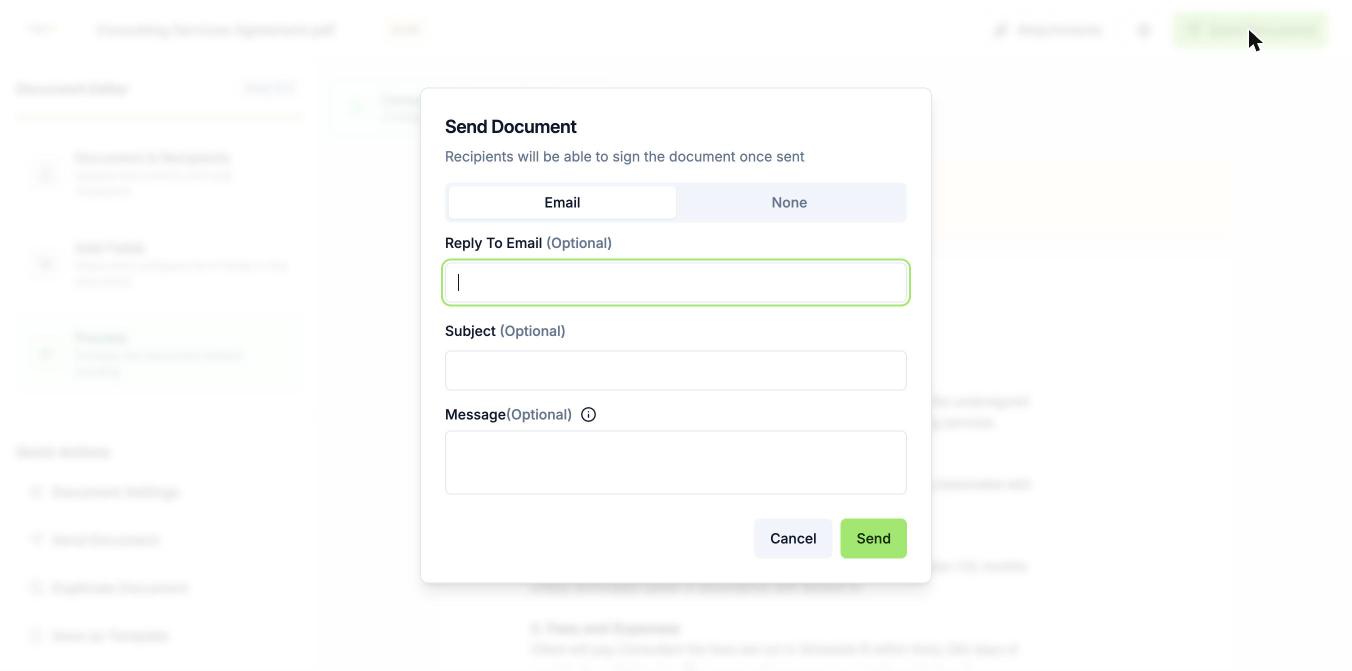 Open delivery options.
 -
Choose delivery
Select email delivery unless an approved API or direct-link workflow will distribute access.
-
Write the message
Set Reply-To, subject, and a clear message.
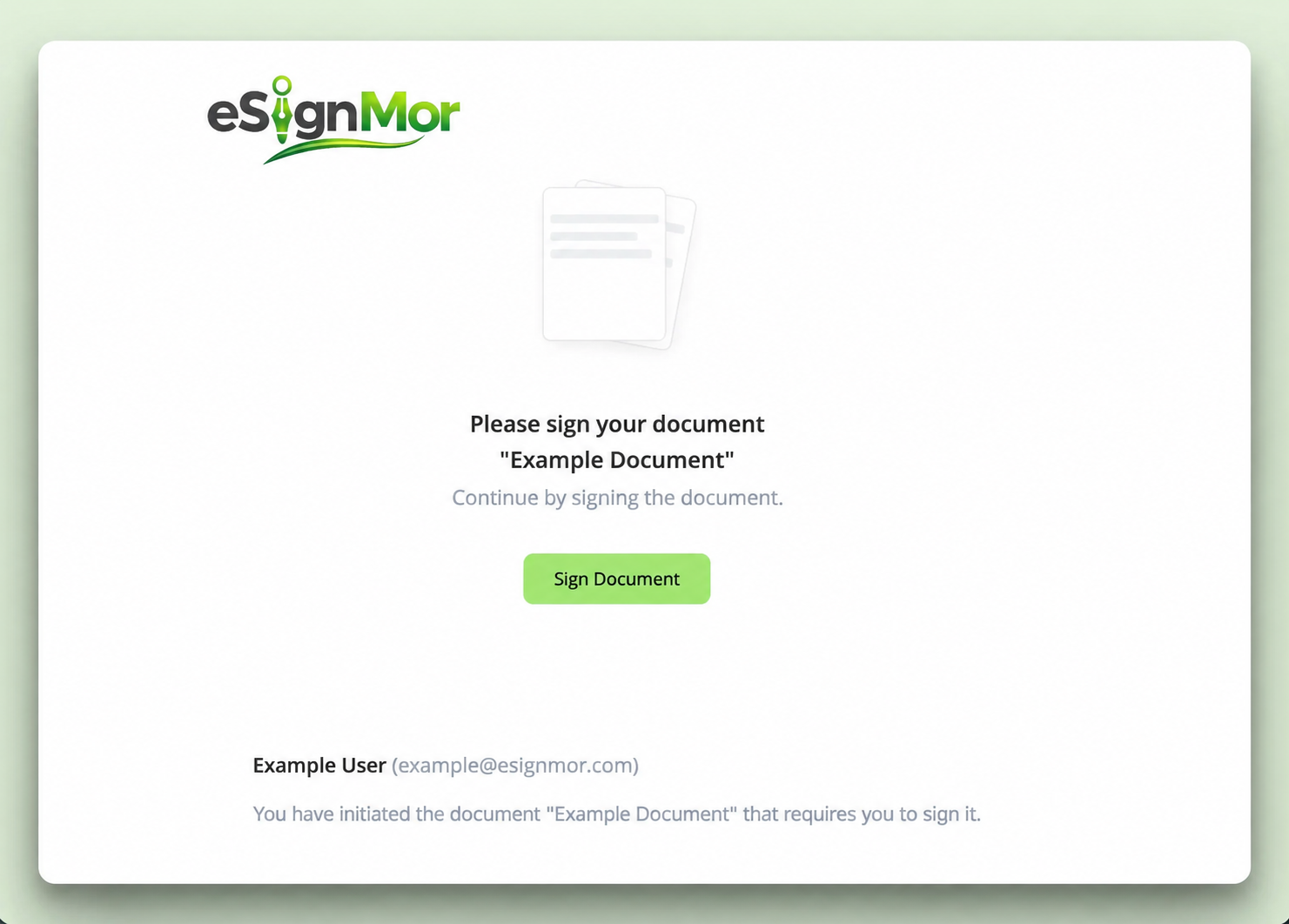 Create a clear signing request.
 -
Send once
Select Send once and wait for confirmation.
Important: Do not click Send repeatedly — it can create duplicate notifications.
-
Verify the status
Open document details and verify Pending status and recipient statuses.
Result: The workflow has started and recipients have been notified.
Need a hand? Email support@esignmor.com.