

Apply organisation branding
Put your logo, colors, and company details on the signing page and emails.
-
Open Branding
Open Organisation Settings and select Branding.
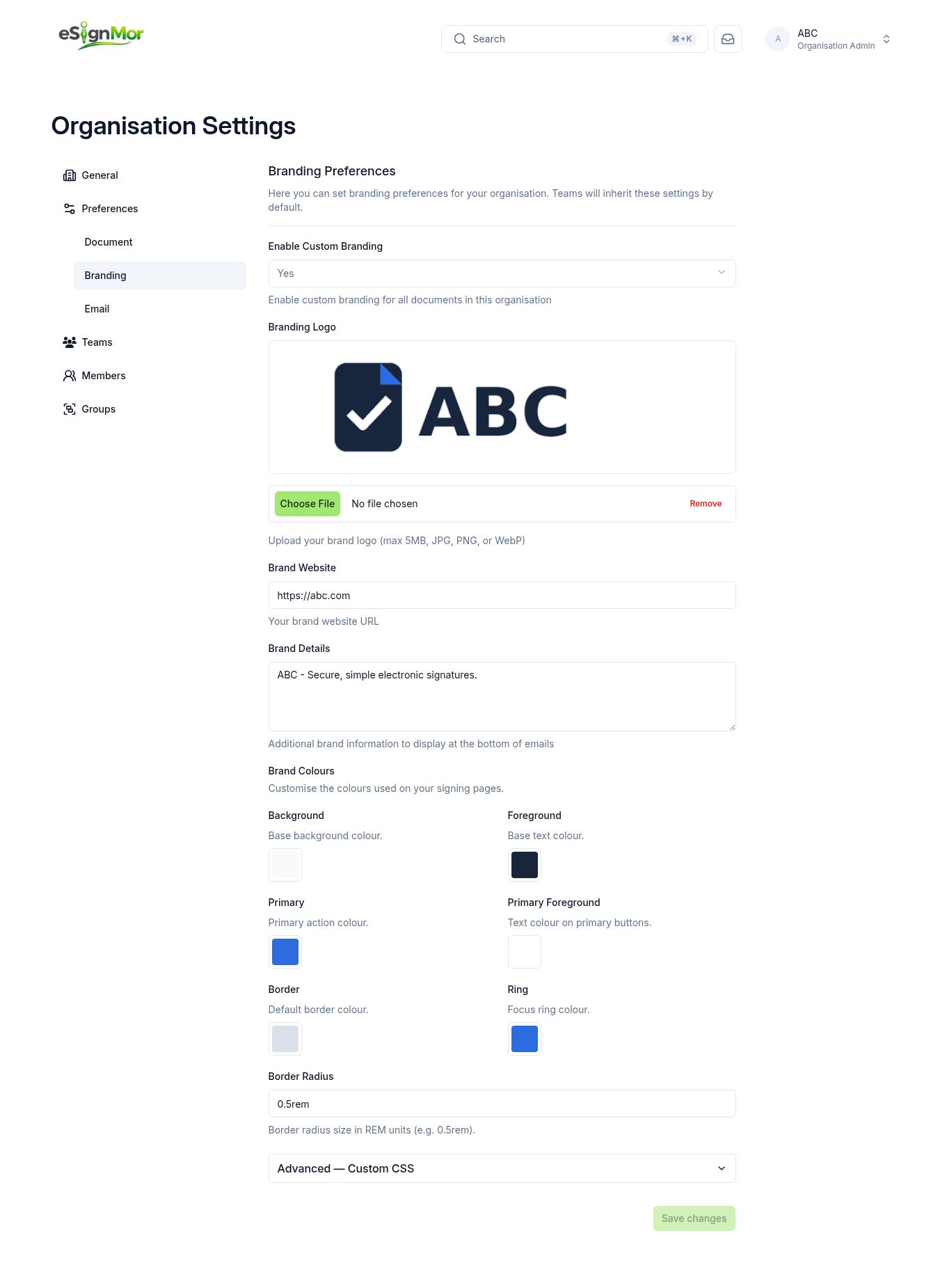 Open organisation branding.
 -
Enable custom branding
Turn on custom branding.
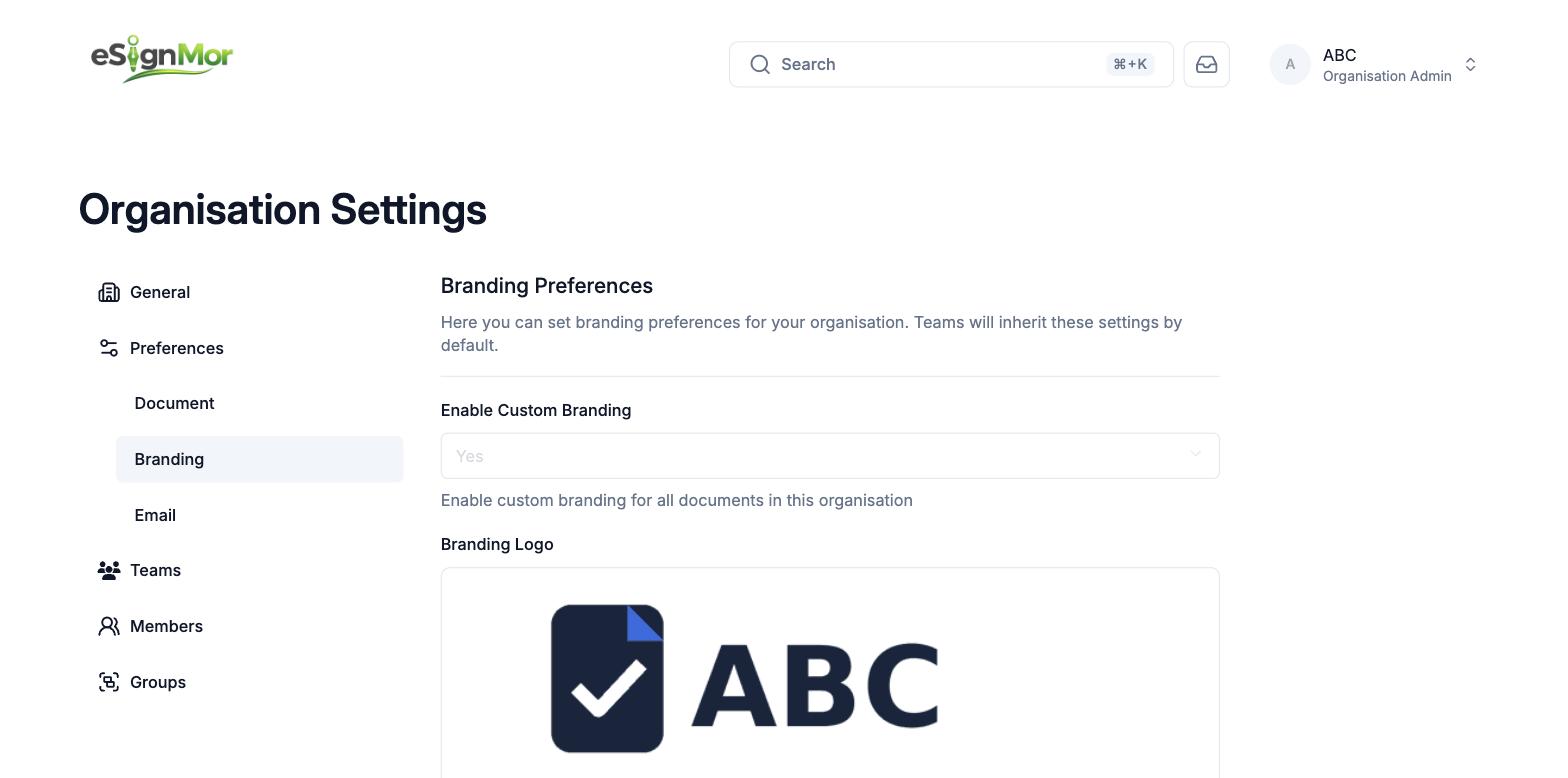 Turn on custom branding.
 -
Upload the logo
Upload a PNG, JPG, or WebP logo no larger than 5 MB.
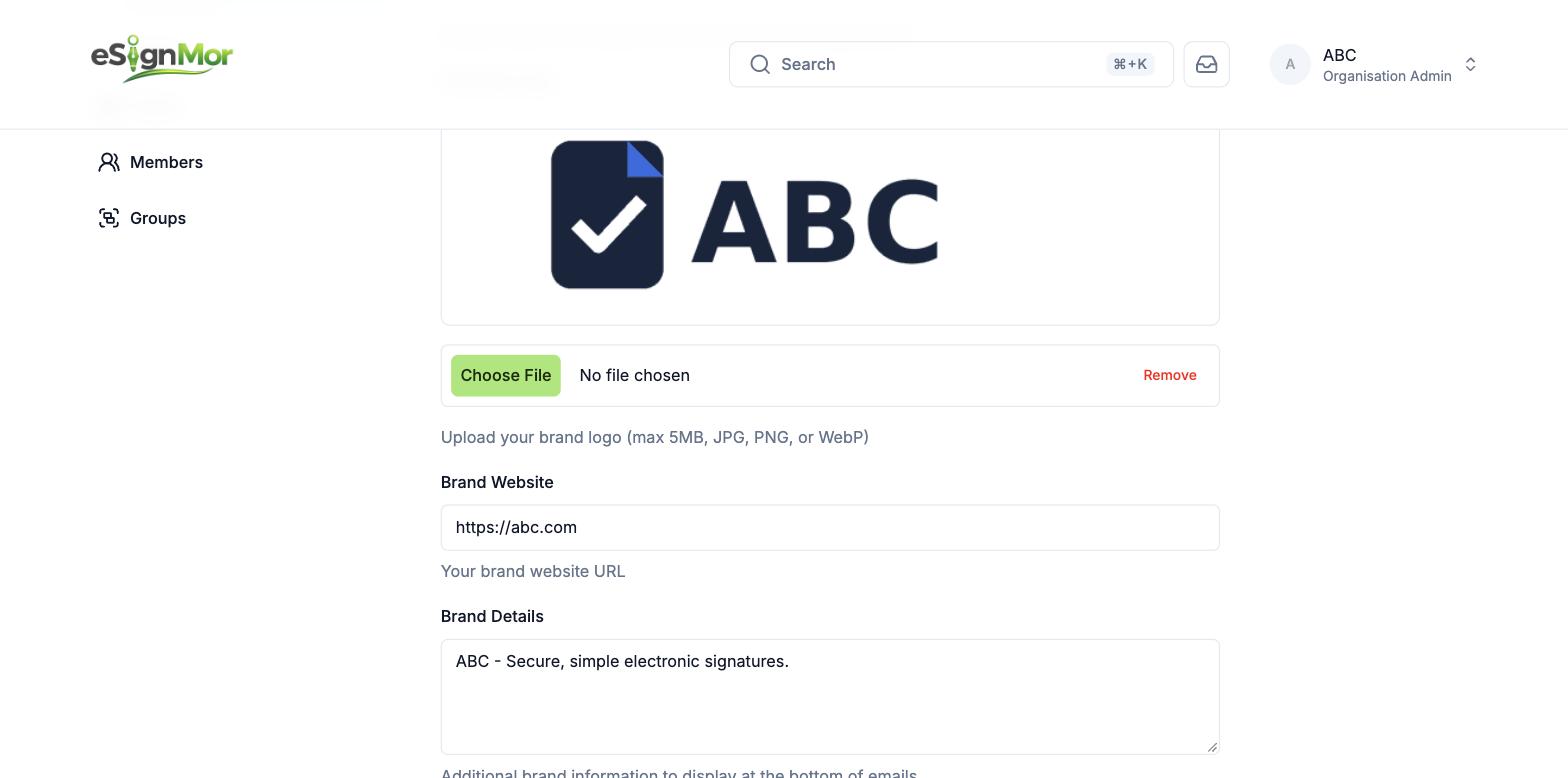 Upload the approved organisation logo.
 -
Add company details
Enter the organisation website and footer details.
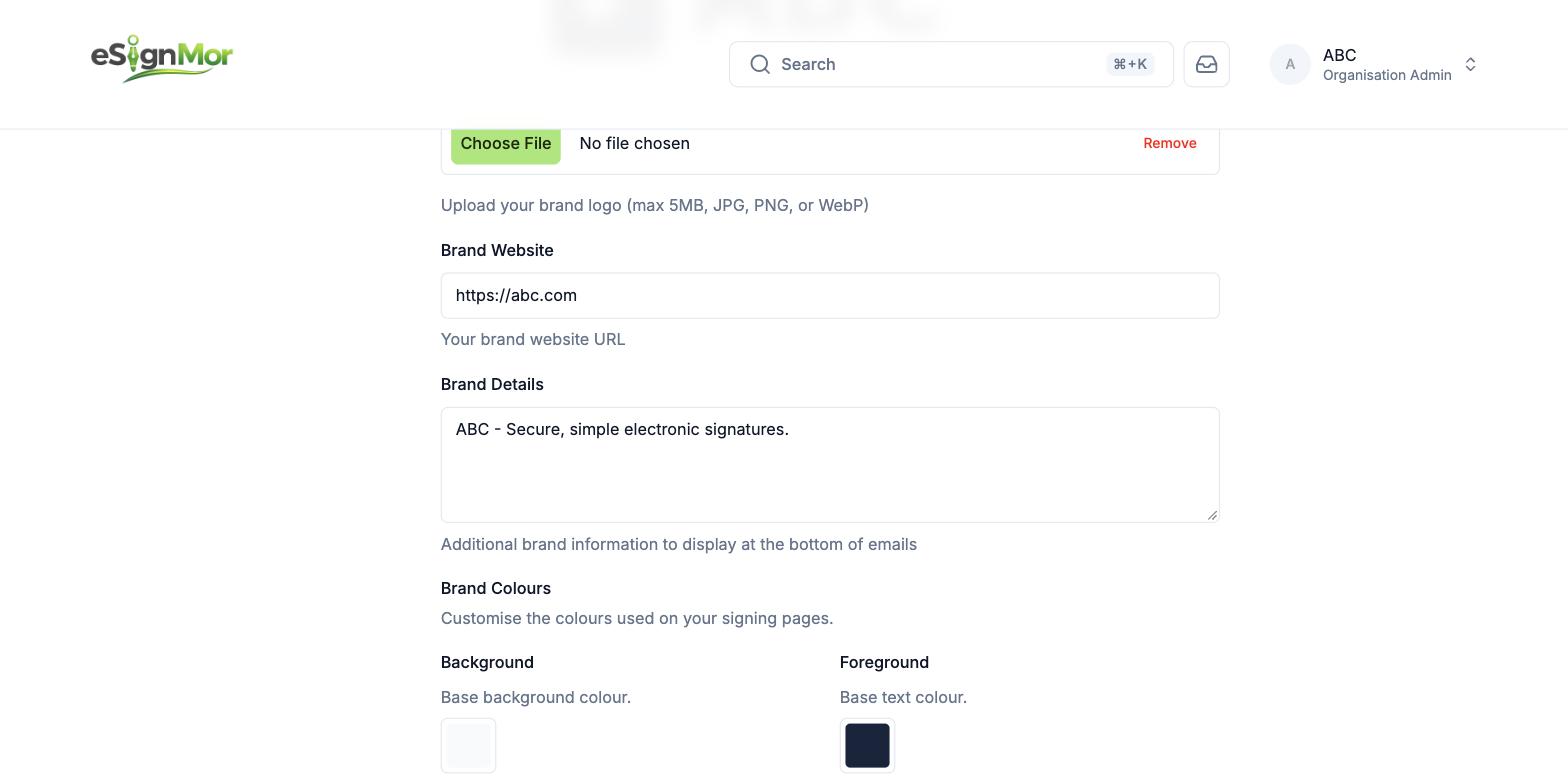 Add verified customer-facing details.
 -
Set the palette
Set background, foreground, primary, primary-foreground, border, and focus-ring colors, plus border radius.
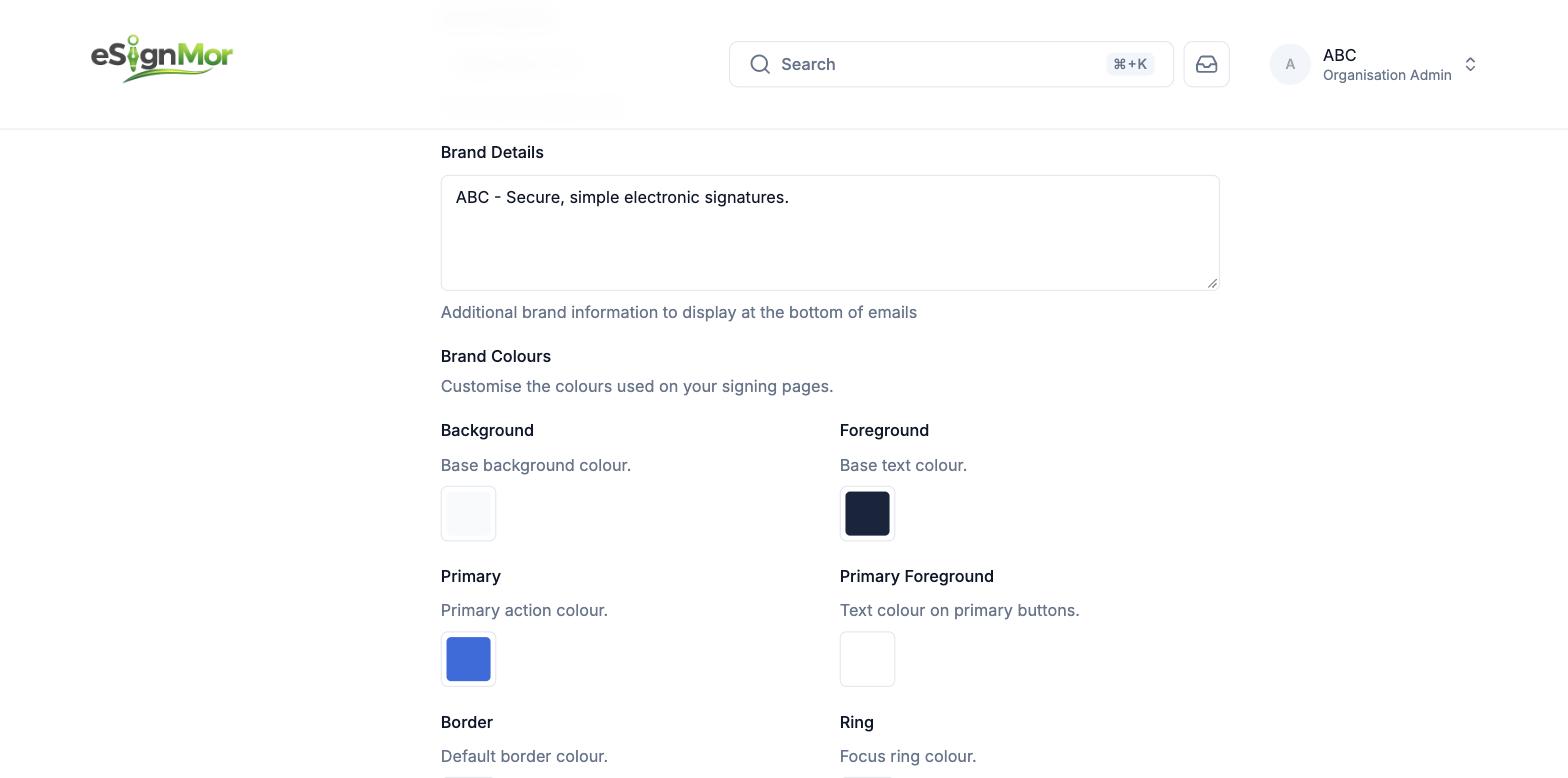 Apply an accessible brand palette.
Note: Keep text and background contrast high enough to stay readable for every recipient.
-
Verify the result
Save, then verify the signing page and email appearance.
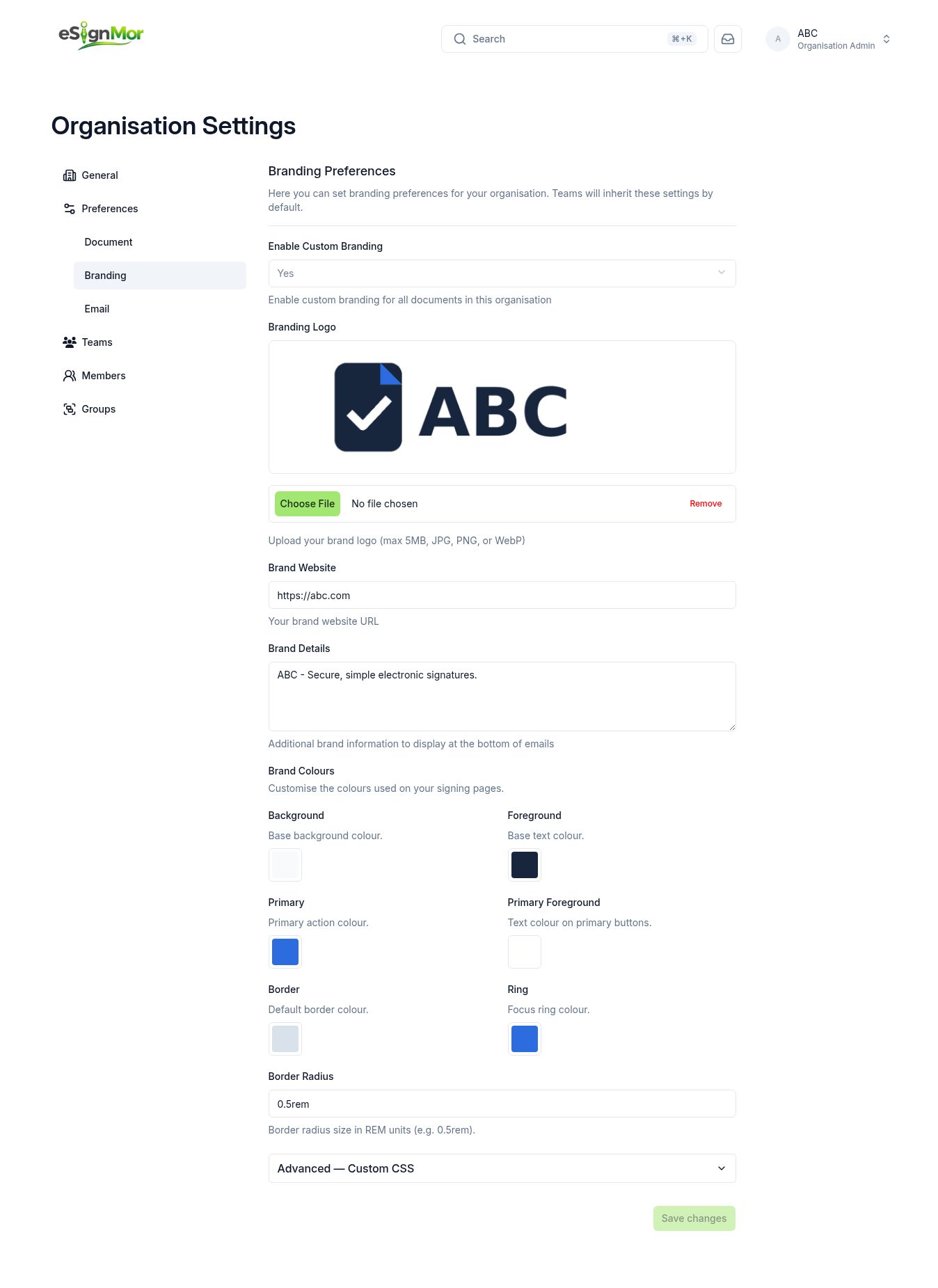 Save and verify the organisation branding configuration.
Result: Recipients see your brand throughout the signing experience.
Need a hand? Email support@esignmor.com.