

Set up your profile and signature
Confirm the identity recipients see and create the signature you reuse across documents.
-
Open Profile settings
Open Account Settings and select Profile.
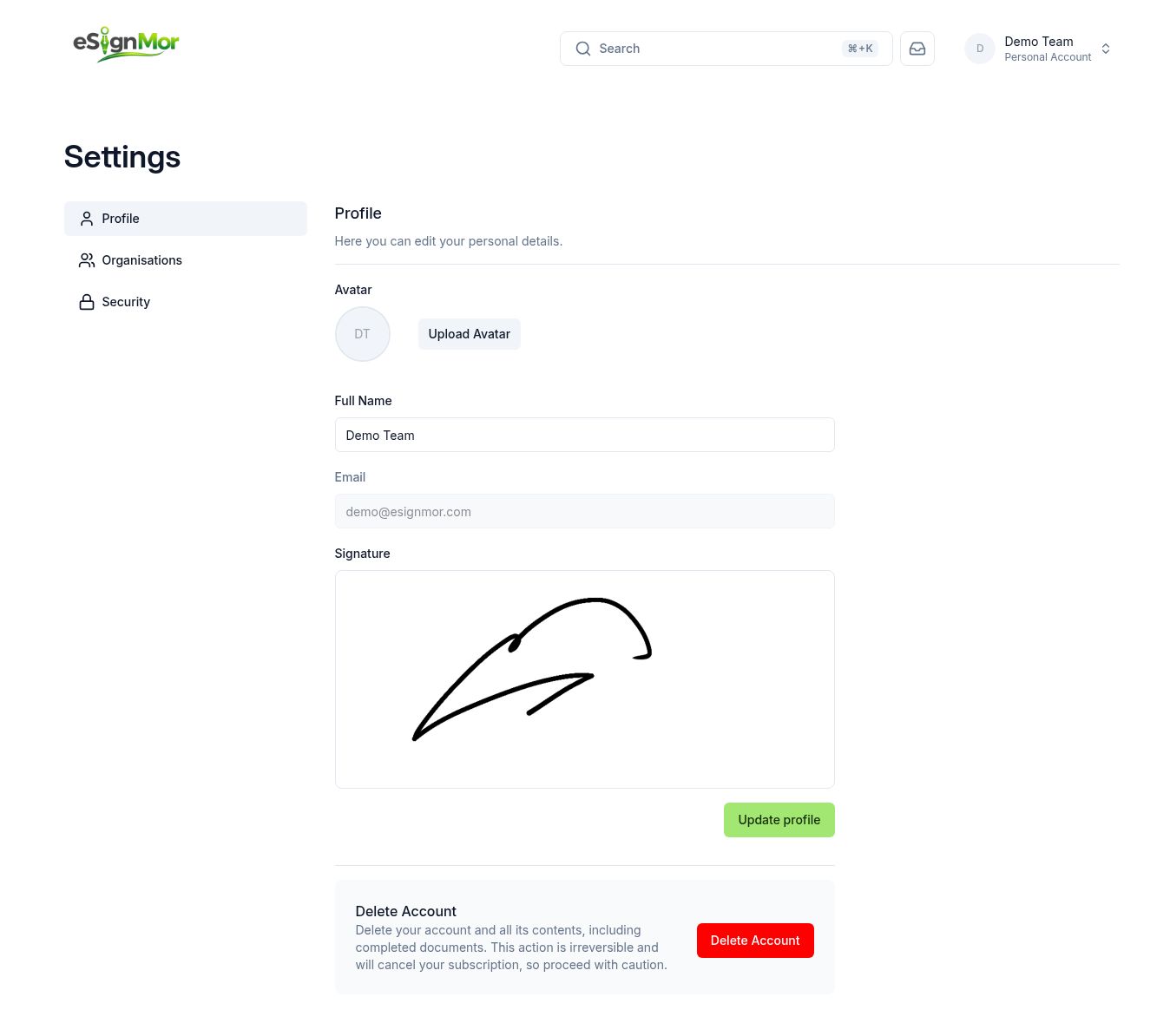 Open Profile settings from the account menu.
Result: Profile fields are editable.
-
Confirm your identity
Confirm the full name and email address.
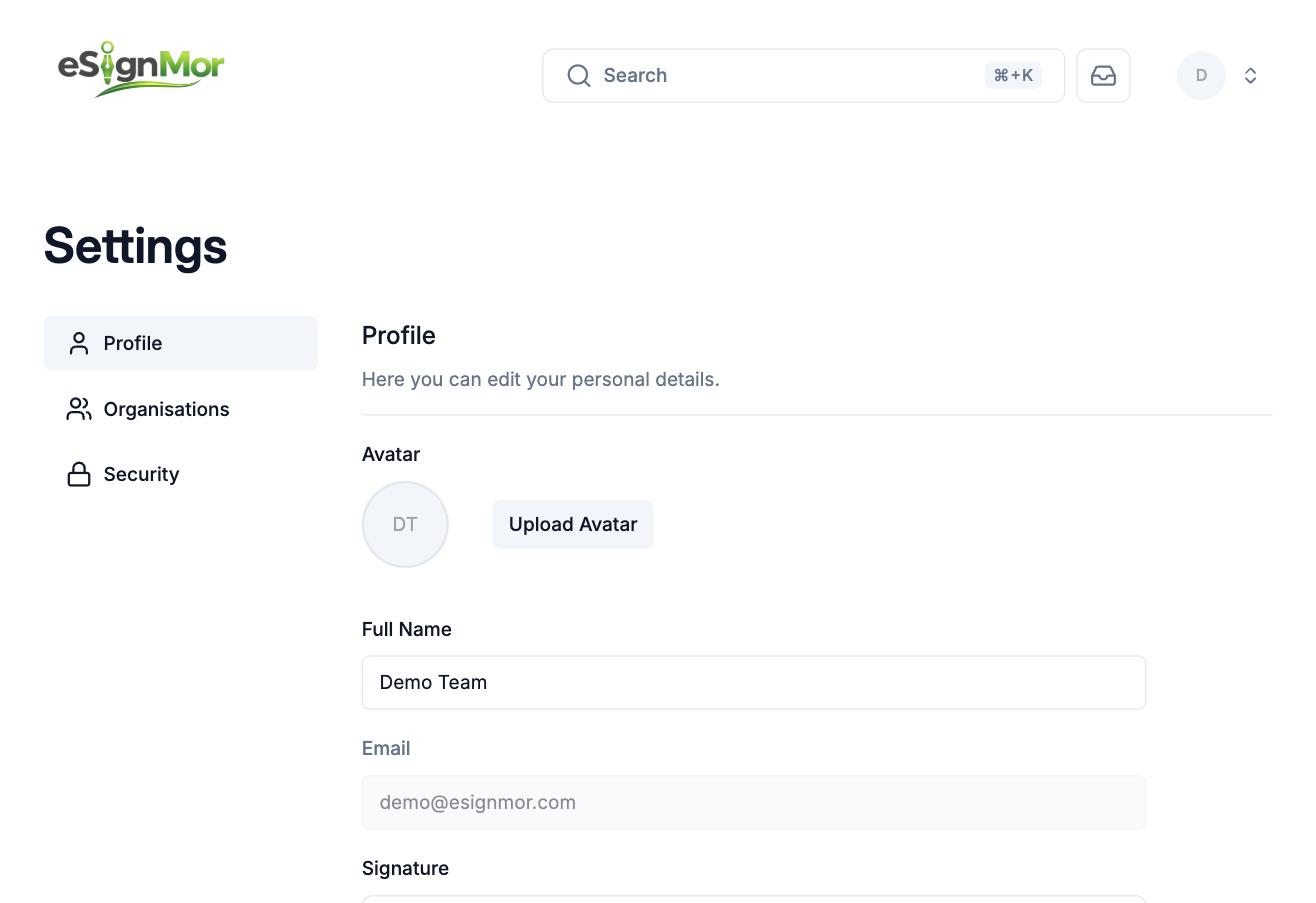 Verify the identity displayed to senders and recipients.
Result: Senders and recipients see the correct name.
-
Add an avatar
Upload or replace the personal avatar if allowed.
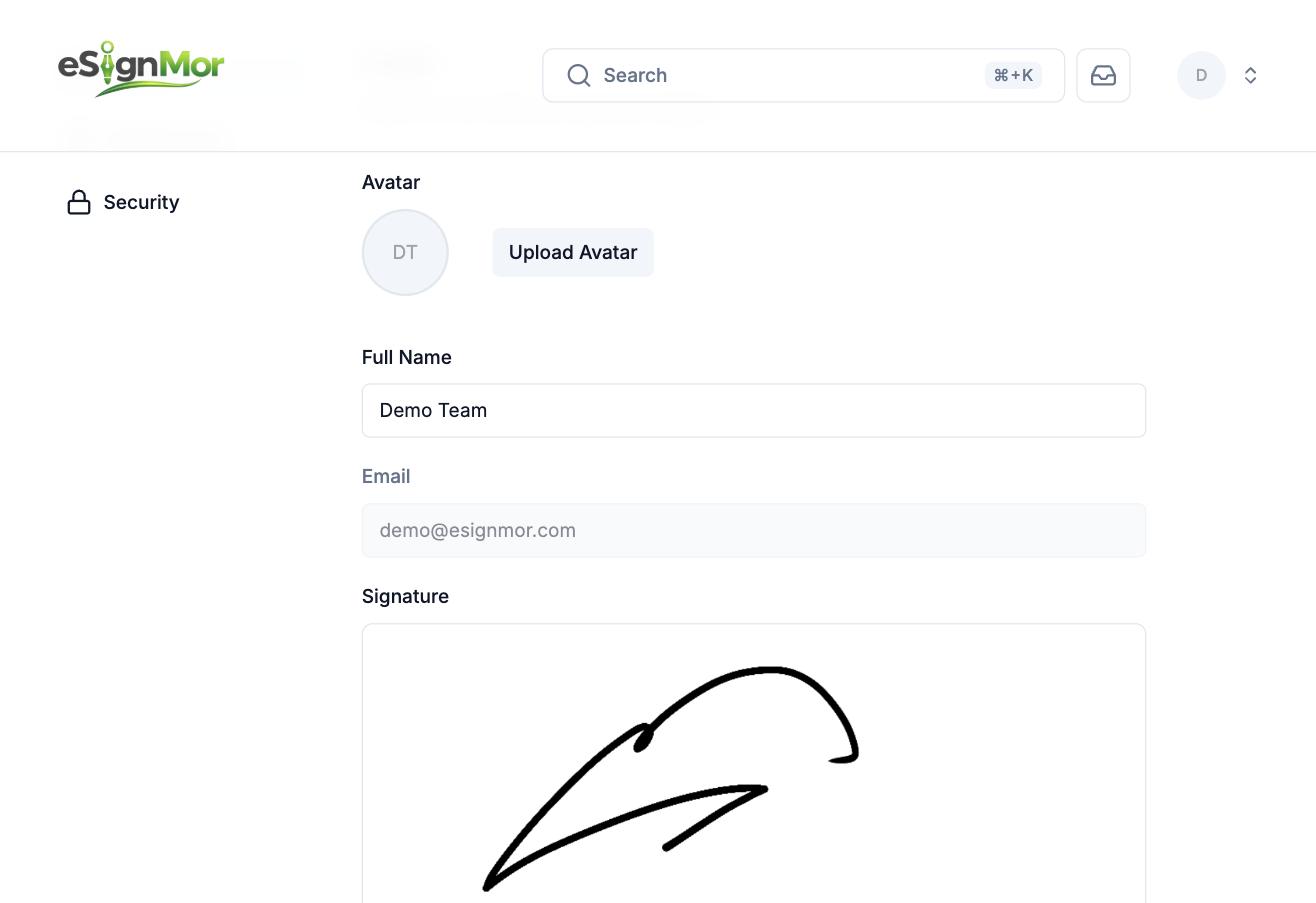 Add an optional profile image.
 -
Create your signature
Create or update the stored signature only when company policy permits reusable signatures.
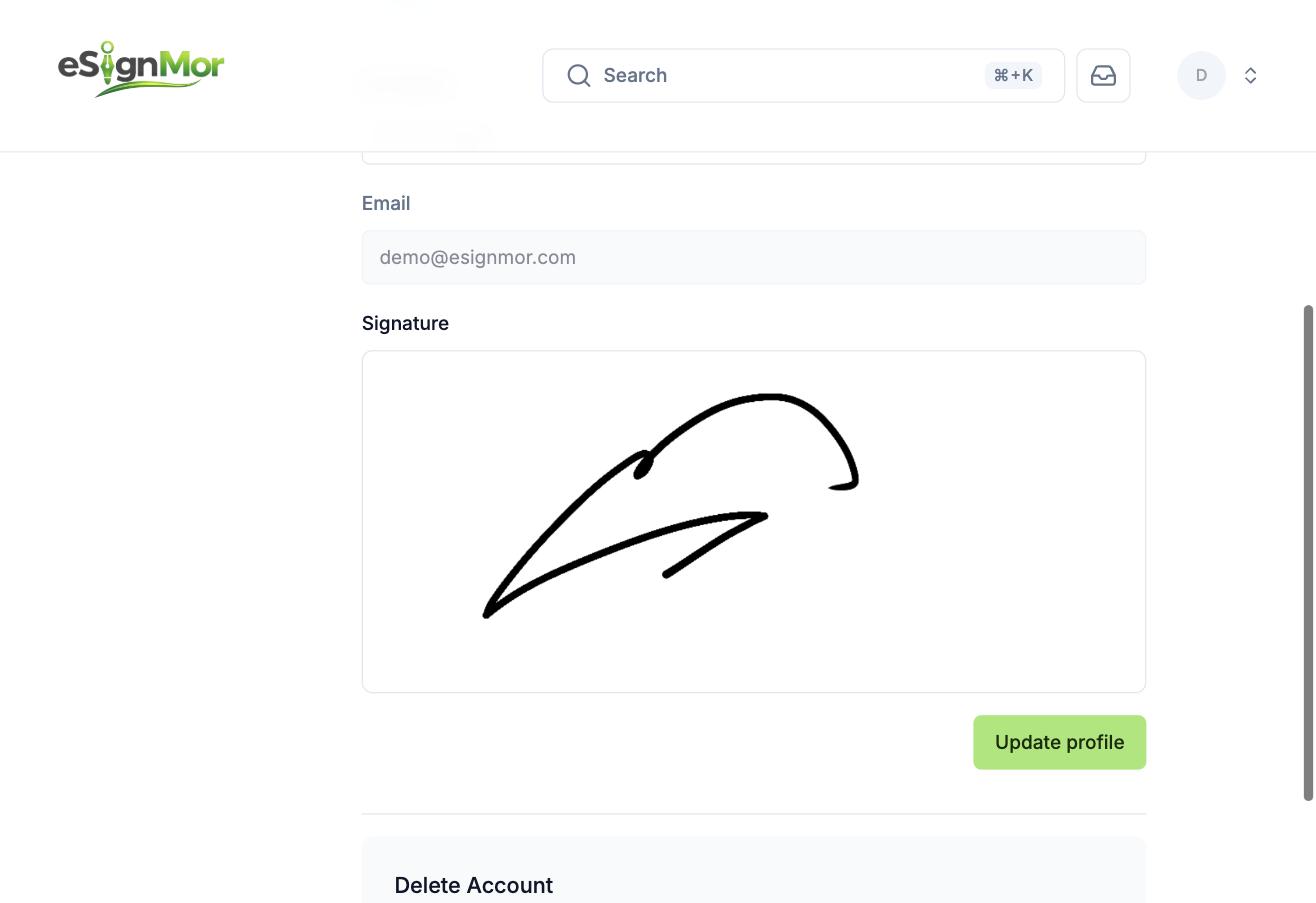 Create or update the personal signature.
Note: A stored signature speeds up signing but must follow your organisation’s policy.
-
Save the profile
Save and confirm the updated profile.
Result: The profile changes are stored.
What happens next
- Learn the dashboard so you can find documents quickly.
Need a hand? Email support@esignmor.com.